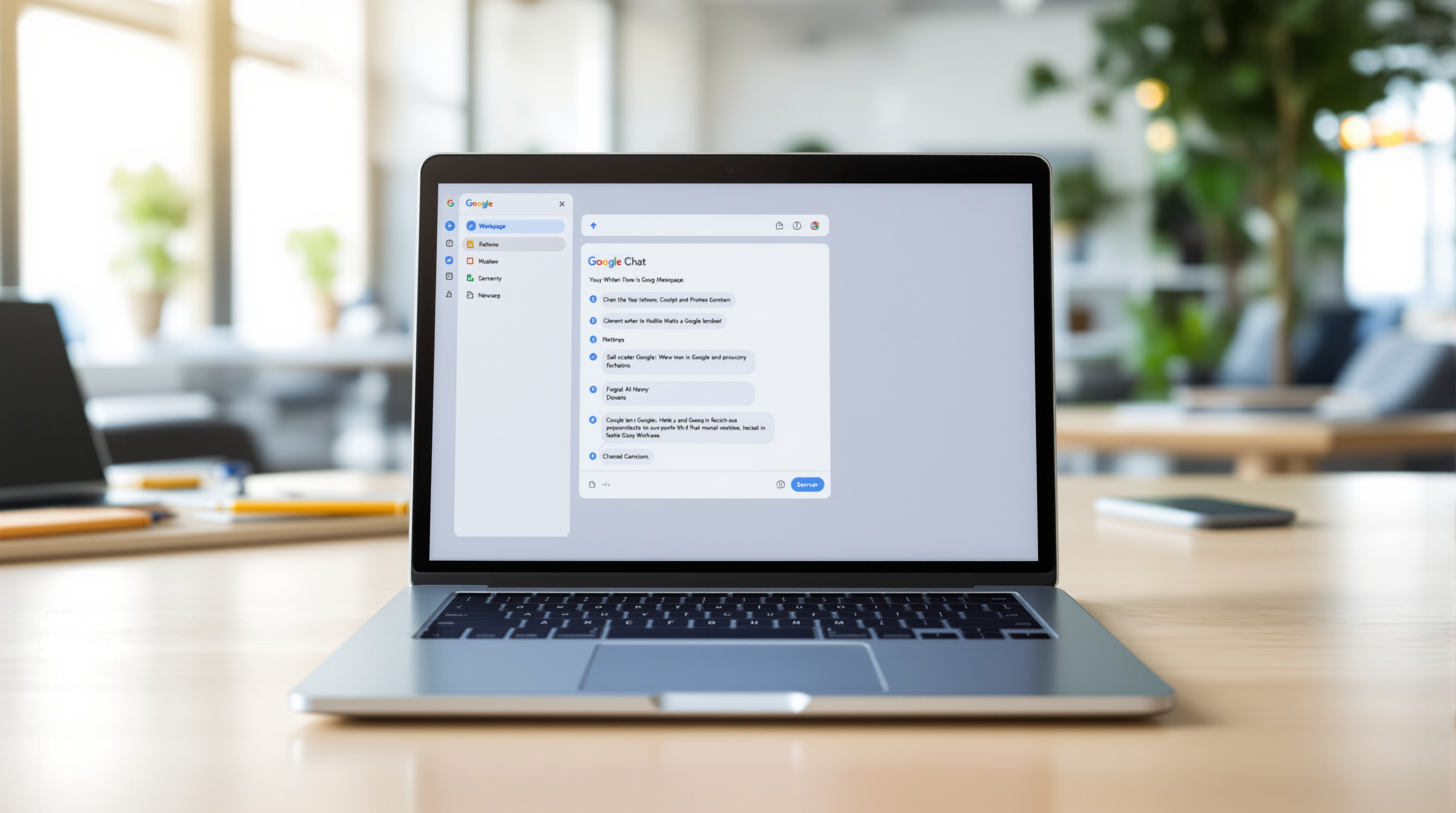
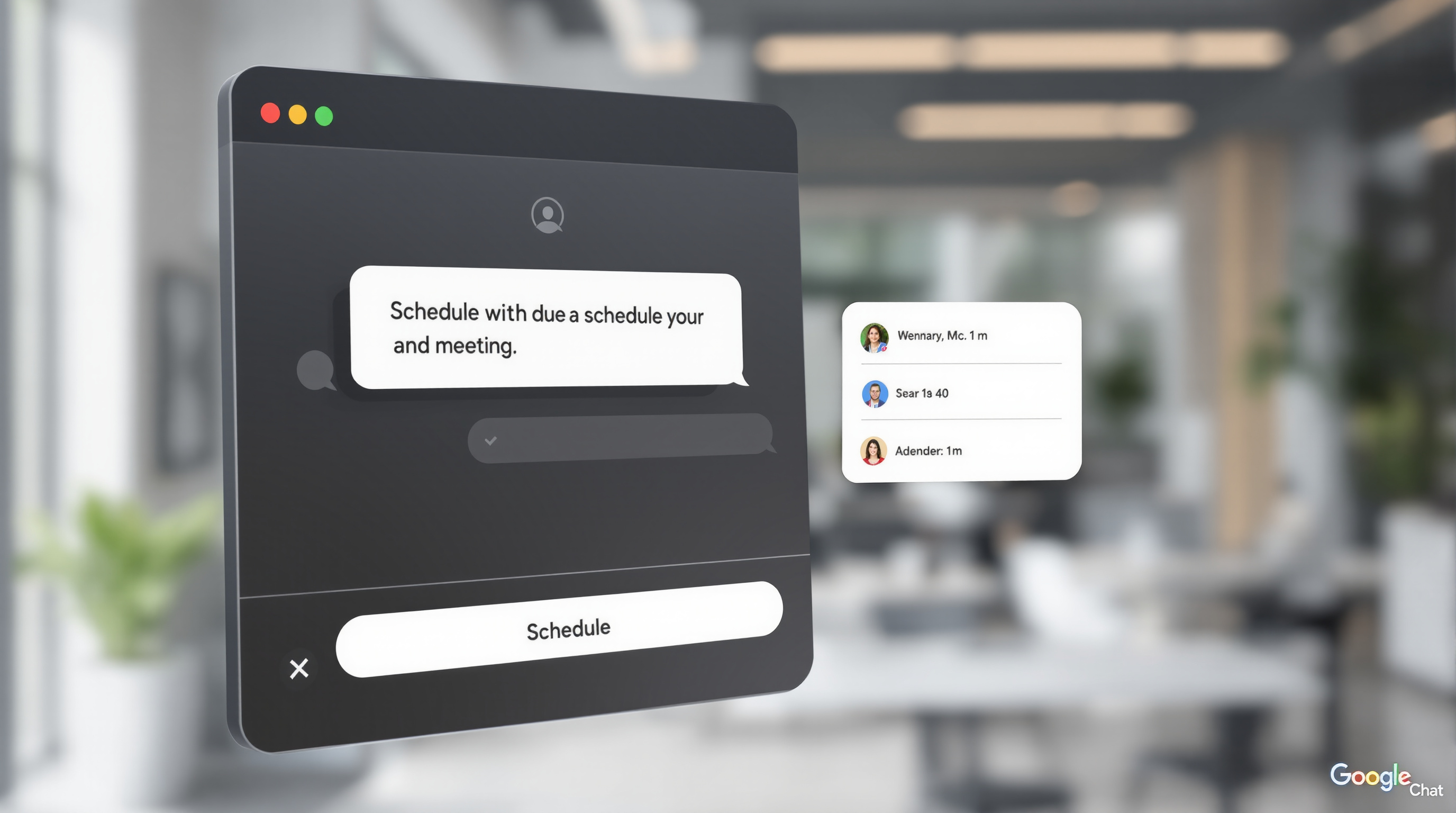
Google Chat now lets you schedule meetings in one click, right from your conversation. When someone types something like "Can we meet tomorrow to discuss this?" Gemini detects the intent, checks everyone's calendars, and offers you suggested times—no switching tabs, no back-and-forth emails. You pick a slot, hit Schedule, and it's done.
This update rolled out in November 2026 for Business Standard/Plus, Enterprise Standard/Plus, Frontline Plus, and AI Ultra Access users.
How does one-click meeting scheduling actually work?
Here's what happens in practice. You're in a Chat conversation—maybe hashing out a project with two colleagues—and someone says "Let's find 15 minutes to go over the numbers." Gemini picks up on that phrase and underlines it.
Hover over the underlined text, and a scheduling card pops up with:
- Up to three suggested meeting times based on everyone's Google Calendar availability (conflicts are flagged)
- Attendees already filled in from the conversation, including anyone mentioned by name
- A suggested meeting title pulled from the conversation context (editable if needed)
Click Schedule. That's it. A confirmation appears in the chat so everyone knows it's booked.
If you need to add a conference room, change the duration, or tweak other details, there's an "Open in Calendar" option that takes you straight there.
What conversations does this work in?
The feature currently works in:
- Direct messages (one-on-one chats)
- Small group conversations with up to 5 participants
- Google Chat on the web (chat.google.com or Chat within Gmail)
- English language only at launch
Gemini is deliberately conservative—it only underlines messages with a clear meeting request, so it won't flag every mention of "tomorrow" or "next week."
What do admins need to do?
Nothing, really. The feature is on by default for eligible users. The one requirement: users need to have "smart features and personalisation" enabled in their account settings.
There's no separate admin toggle for this specific feature. If you want to manage Gemini features more broadly, Google's admin console lets you control access to Gemini features in Workspace services.
For organisations already using Google Workspace, you can explore our Google Workspace solutions for setup and support options.
Why does this matter for your team?
The honest answer: scheduling meetings is tedious. You know the drill—someone suggests a call, then there's five messages about availability, someone checks their calendar, another person forgot they had a conflict. Twenty minutes later you've got a meeting on the books.
This cuts that down to about ten seconds.
It's particularly useful for teams that live in Chat throughout the day. You don't lose momentum switching between apps, and the meeting actually gets scheduled instead of falling through the cracks.
Frequently asked questions
Do I need a paid Google Workspace plan for this?
Yes. This feature is available on Business Standard, Business Plus, Enterprise Standard, Enterprise Plus, Frontline Plus, and with the AI Ultra Access add-on. It's not included in Business Starter or the free Google account.
Can I turn this off if I find it distracting?
The feature respects your "smart features and personalisation" settings. If you disable those in your Gmail/Chat settings, the scheduling suggestions won't appear.
Does it work in Spaces or large group chats?
Not currently. It's limited to direct messages and group conversations with five or fewer participants.
Will it schedule meetings with external guests?
The feature pulls attendees from the conversation. If external users are part of that Chat conversation and you have permission to view their calendar availability, it should work—though calendar visibility depends on how their organisation has configured sharing.
Ready to get more from Google Workspace?
If you're not yet on Google Workspace—or you're on a plan that doesn't include these AI features—Blue Chip Technologies Ltd. can help you find the right setup for your organisation. We handle deployment, migration, and ongoing support for businesses worldwide.
Get in touch: