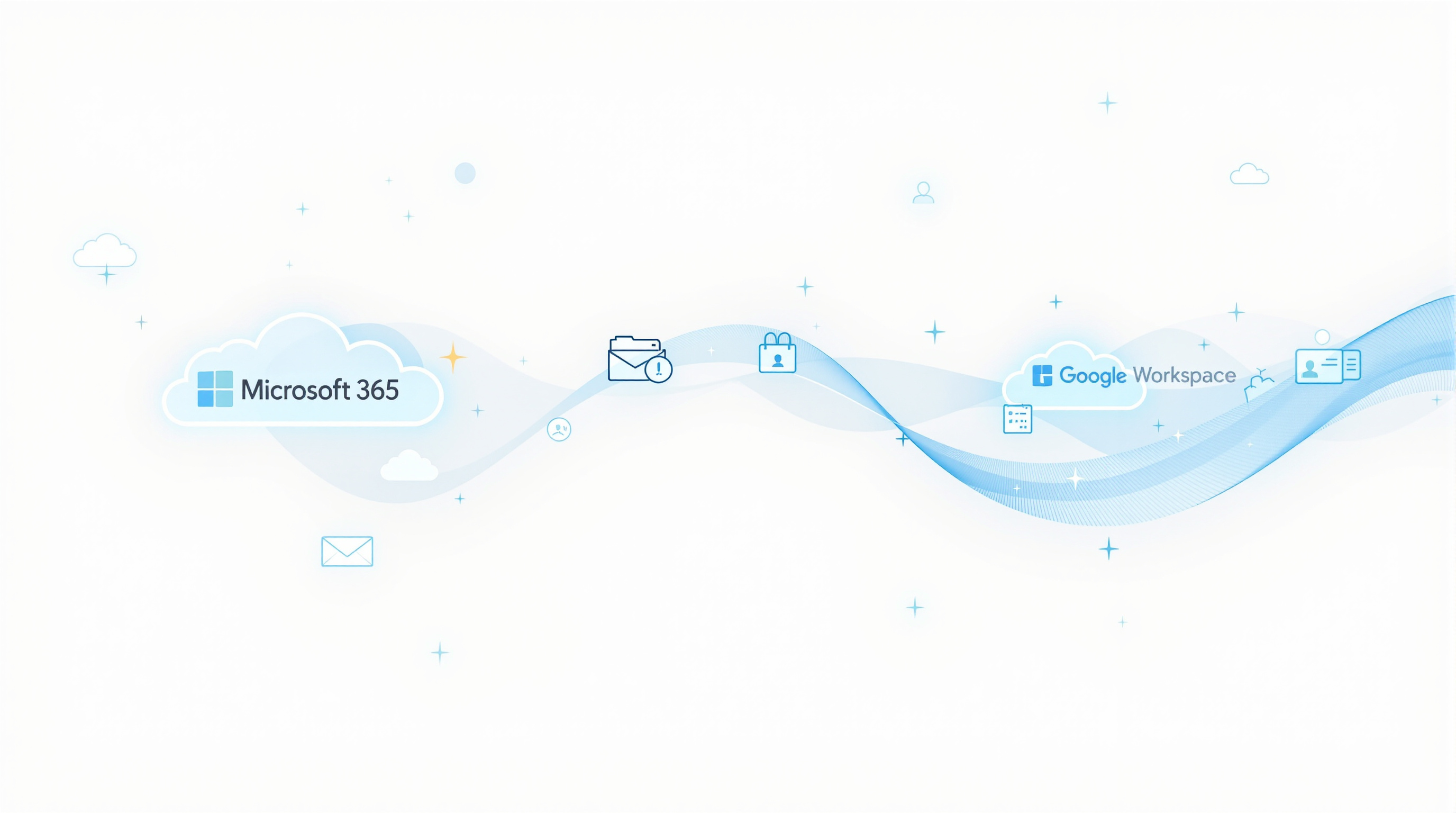
If you're moving your business from Microsoft 365 to Google Workspace, you can now import your users and their data—emails, OneDrive files, calendars, contacts, and tasks—directly during the initial setup process. No separate migration tool, no waiting until everything's configured. Google's built-in data import feature handles it in two steps, and your team can be working in their new environment within hours rather than days.
Why does this matter for your business?
Switching productivity platforms used to mean weeks of planning, potential data loss, and that awkward period where half your team is on one system and half on another. We've helped organisations through enough migrations to know the headaches involved.
This new import feature changes the equation. Instead of setting up Google Workspace first, then running a separate migration project, you do both together. Your users arrive with their history intact—no "sorry, I can't find that email from last month" conversations.
How does the Microsoft to Google Workspace import actually work?
The process is straightforward:
- Complete your domain verification and MX record activation in Google Workspace
- Connect to your Microsoft business account using global admin credentials
- Choose which users and data types to include (you can exclude anything you don't need)
- Let the import run in the background while you finish configuring Workspace
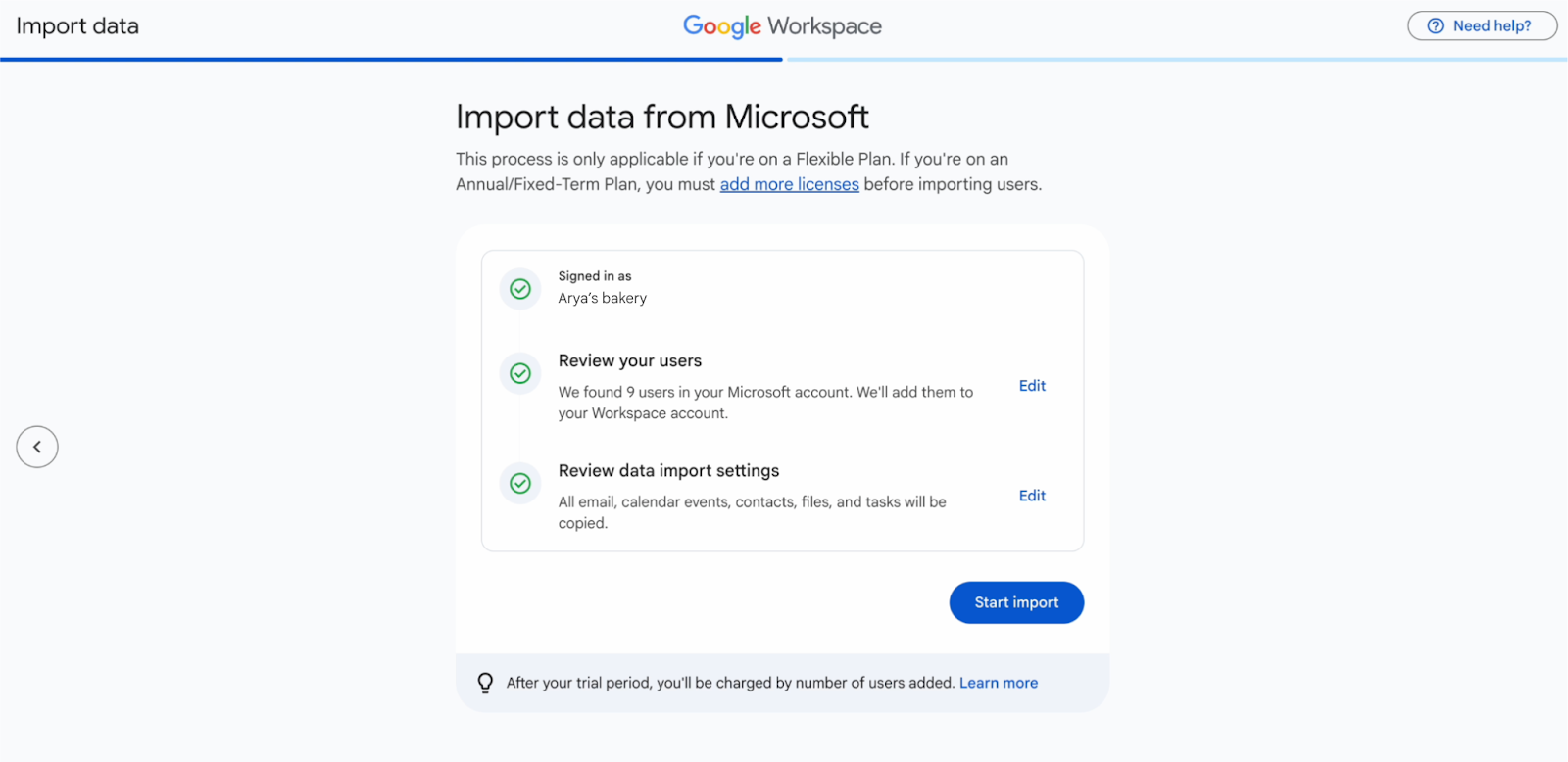
The import copies everything over—it doesn't delete anything from Microsoft, so you've got a safety net if something needs checking.
What data gets transferred?
| Microsoft Source | Google Workspace Destination |
|---|---|
| Outlook emails | Gmail |
| OneDrive files | Google Drive |
| Calendar events | Google Calendar |
| Contacts | Google Contacts |
| Tasks | Google Tasks |
That covers the essentials for most teams. Your staff won't be starting from scratch.
What are the limitations?
A few things to know upfront:
- The automatic import handles up to 10 users. Larger organisations need Google Workspace Migrate for the full job.
- You'll need to be on a Flexible Plan, or add the necessary licences first if you're on an Annual/Fixed-Term arrangement.
- This runs during initial setup only—it's not for organisations already running Workspace.
For businesses with more than 10 people, Google's dedicated migration tools can handle the scale. We've run migrations for teams of 50+ and the process is manageable with proper planning.
If you're exploring whether Google Workspace fits your organisation, our Google Workspace solutions page covers the different editions and what's included.
Frequently asked questions
Can I choose which users to migrate?
Yes. After connecting your Microsoft account, you can exclude specific users or entire data types before the import starts.
Will this delete my Microsoft data?
No. The import copies data to Google Workspace. Your Microsoft account remains untouched.
How long does the migration take?
It depends on data volume, but the process runs in the background. Small teams often complete within a few hours.
What if we have more than 10 users?
You'll need to use Google Workspace Migrate, which handles larger organisations. Blue Chip Technologies Ltd. can assist with planning and execution.
Ready to make the switch?
Moving to Google Workspace doesn't have to be complicated. Whether you're a small team taking advantage of the built-in import or a larger organisation needing a managed migration, Blue Chip Technologies Ltd. can help you get set up properly.
Get in touch: