

Copilot in Word, Excel, and PowerPoint Needs a Workflow Plan
Microsoft has made Copilot's agentic capabilities in Word, Excel, and PowerPoint generally available. For small and mid-sized businesses, the important change is not only that Copilot can answer questions. It can now take more app-native actions directly inside the documents, workbooks, and presentations staff already use every day.
That matters for teams in Trinidad and Tobago that spend real time preparing proposals, reports, spreadsheets, board packs, training material, and customer presentations. AI can help move work faster, but only if the business gives it clear boundaries, clean source material, and a sensible review process.
Copilot should speed up office work. It should not turn every document into an experiment.
From advice to action
Earlier AI tools often gave staff suggestions: rewrite this paragraph, explain this formula, summarize this deck. Microsoft's update points to a more active model where Copilot can help restructure a Word document, work with Excel tables and visuals, and update PowerPoint presentations while respecting the way each app works.
For an SMB, that is useful because many delays are not caused by lack of ideas. They come from formatting, version cleanup, repeated edits, spreadsheet interpretation, and turning raw notes into something a customer or manager can actually use.
If Copilot can handle some of that preparation, staff can spend more time checking the message, the numbers, and the decision.
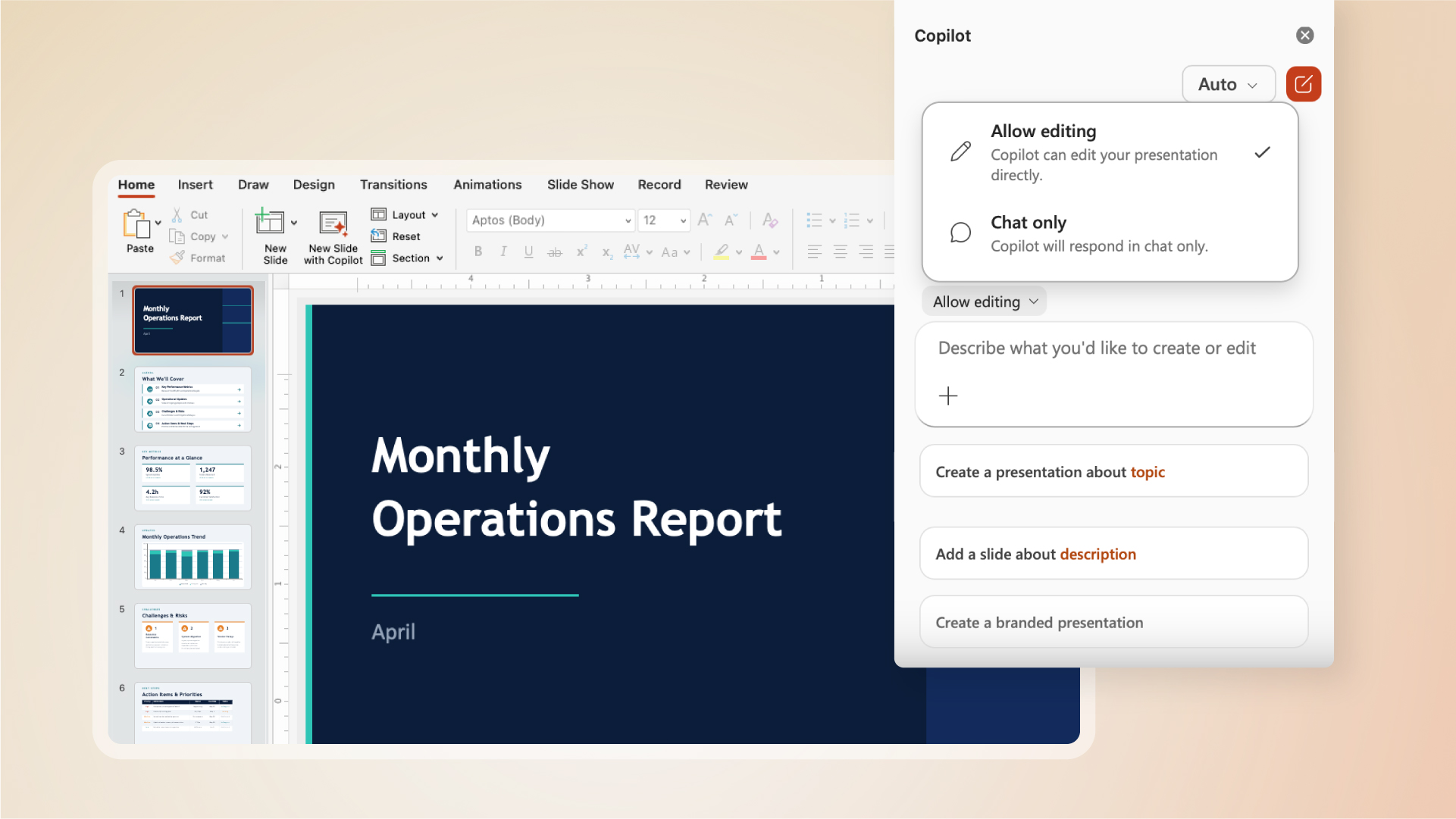
Microsoft's article shows Copilot working directly inside PowerPoint, a useful example of AI moving from suggestions to document actions.
Good source material still decides the quality
Copilot in Word, Excel, and PowerPoint is only as useful as the information it can safely use. If the source files are scattered, outdated, duplicated, or poorly named, AI will struggle to produce reliable work.
Before scaling this kind of workflow, businesses should review where important working files live:
- customer proposal templates
- price lists and product sheets
- monthly reports and management packs
- policy documents and procedures
- approved brand assets and presentation templates
- Excel workbooks used for recurring analysis
- SharePoint and OneDrive folders used by each department
When the source material is clean, Copilot has a better chance of helping staff produce work that is accurate, current, and consistent.
Word: useful for drafting, but review still matters
In Word, Copilot can help draft, rewrite, restructure, and adjust tone. That is valuable for proposals, internal notices, HR documents, procedures, customer follow-ups, and project summaries.
The business should still decide what needs approval before it leaves the company. A first draft is not the final position of the business.
A practical Word workflow might look like this:
- start from an approved template
- use Copilot to draft or restructure the document
- ask the document owner to check facts, tone, and commitments
- confirm that sensitive customer or employee data is handled properly
- save the final version in the correct SharePoint location
That keeps AI useful without weakening accountability.
Excel: helpful analysis needs controlled workbooks
Excel is where AI can create real productivity gains, especially for teams that rely on recurring reports but do not have dedicated analysts. Copilot can help explore data, explain patterns, work with formulas, and turn questions into analysis.
The risk is that spreadsheets often contain old assumptions, hidden tabs, manual edits, and copied data from multiple sources.
For Excel workflows, Blue Chip would usually recommend:
- keep a protected master workbook or report source
- label key tables and columns clearly
- separate raw data from analysis sheets
- document formulas that drive business decisions
- review AI-generated formulas and summaries before using them
- avoid using sensitive financial or employee data in unmanaged tools
Copilot can help staff ask better questions of the data, but someone still has to confirm the workbook is trustworthy.
PowerPoint: faster decks need brand control
PowerPoint is a natural fit for AI support because many presentations start from existing reports, meeting notes, product information, or old decks. Copilot can help refresh slides, add talking points, and turn current data into a clearer story.
For SMB teams, the win is speed and consistency. Sales, operations, and management teams can spend less time rebuilding slides and more time sharpening the message.
The control point is the template. If the company has approved colours, layouts, disclaimers, and standard service descriptions, those should be stored where staff can use them repeatedly. Otherwise, each AI-assisted deck may drift in style and wording.
Where this fits in a Microsoft 365 rollout
This is not only a Copilot feature decision. It is part of the wider Microsoft 365 operating model.
To get value from AI inside Office apps, businesses should have the basics in place:
- Microsoft 365 accounts and licences assigned correctly
- SharePoint and OneDrive permissions reviewed
- Teams and document ownership cleaned up
- MFA and conditional access enabled
- Defender and security alerts monitored
- approved templates stored centrally
- staff trained on safe AI use
- clear rules for human review before client-facing work is sent
Those foundations make Copilot more productive because the assistant is working from better governed information.
Start with one repeatable workflow
The best first project is not "use Copilot everywhere." Pick one repeatable office workflow and make it measurable.
Good candidates include:
- monthly operations report in Word and PowerPoint
- sales proposal drafted from approved service templates
- Excel report summary for management meetings
- board pack created from recurring department updates
- customer project status report from Teams notes and SharePoint files
Define the source documents, the expected output, the reviewer, and where the final version should be stored. Then test whether Copilot reduces preparation time without lowering quality.
That is the right balance for most SMBs: let AI handle more of the document preparation, while people stay responsible for the facts, judgment, approvals, and customer commitments.
Microsoft 365 Copilot is becoming more capable inside the core Office apps. Businesses that treat it as a managed workflow tool, rather than a shortcut for random drafts, will get better results with less risk.
Source: Microsoft 365 Blog - Copilot's agentic capabilities in Word, Excel, and PowerPoint are generally available.