Gemini in Google Docs: Set Writing Rules Once, Reuse Them Every Day
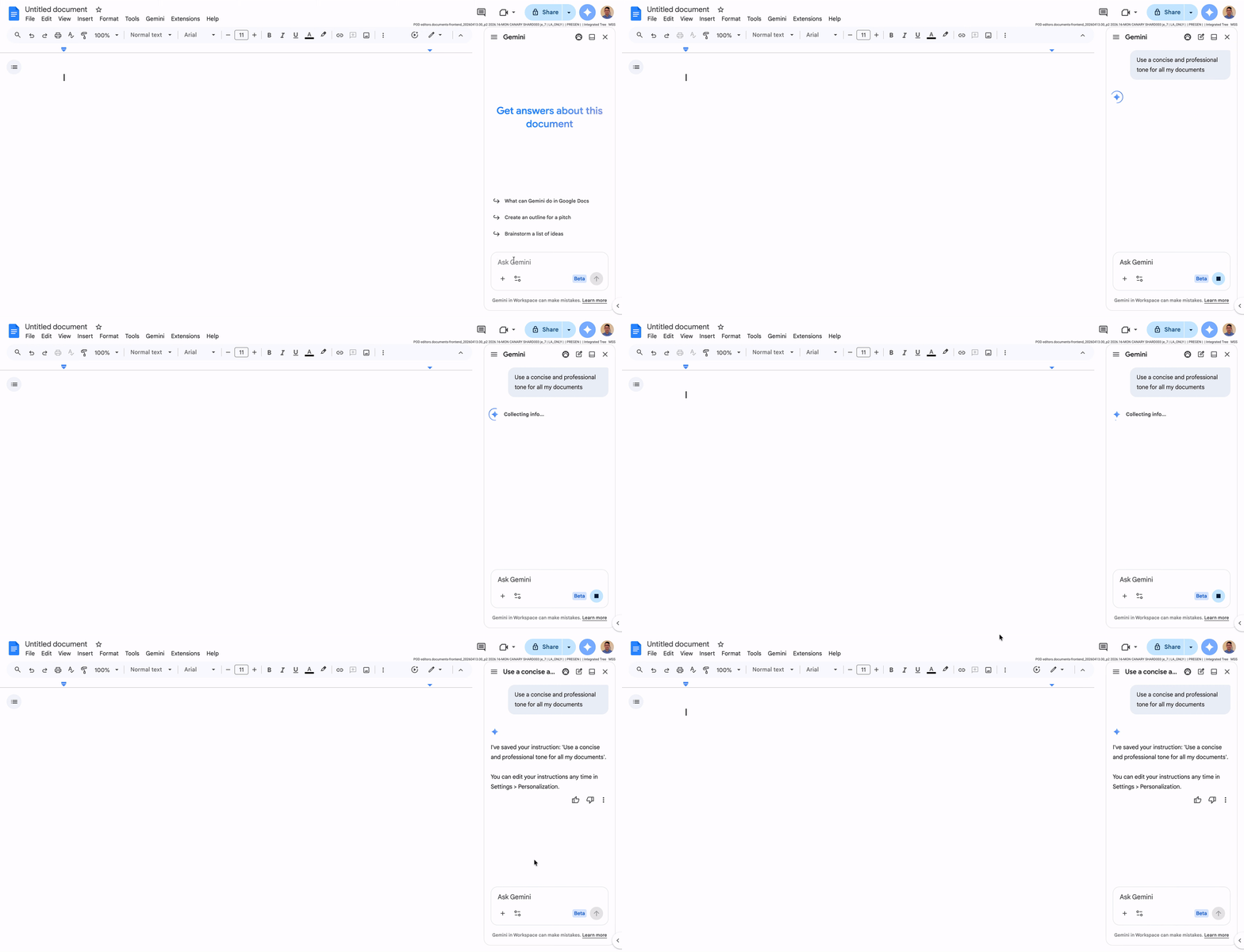
Google has added persistent custom instructions for Gemini in Google Docs. Instead of telling Gemini the same writing preferences every time, users can ask Gemini in the Docs side panel to remember rules such as tone, formatting, summary style, or document structure.
For a small or mid-sized business, that sounds like a small convenience. In practice, it can help teams produce more consistent documents with less rework.
Why custom instructions matter
Most business documents are not written in isolation. A proposal, policy, customer update, board note, project summary, or HR communication usually has an expected style.
A business may want documents to be concise, professional, written in plain language, structured with bullet points, or summarised with key actions at the top. Without shared rules, every staff member prompts AI differently and every document needs extra review.
Persistent Gemini instructions help reduce that friction. Once users save preferred rules, Gemini can apply them again inside Google Docs without the user rebuilding the prompt from scratch.
Practical examples for Blue Chip clients
This can be useful across everyday departments:
- Sales: keep proposals and follow-up letters concise, customer-focused, and consistently formatted
- Operations: turn rough notes into structured procedures or shift handover documents
- Management: summarise long documents with decisions, risks, and next actions at the top
- HR: draft staff notices and policy updates in a consistent internal tone
- Customer service: create clearer response templates without losing professionalism
- Projects: convert meeting notes into action lists, timelines, and stakeholder updates
The value is not that Gemini writes everything for the business. The value is that teams can start from rough material and move faster toward a usable, consistent draft.
Better productivity still needs governance
AI writing tools work best when the business sets boundaries.
Before rolling this out widely, clients should think about:
- which Google Workspace editions and Gemini features are available to users
- what types of company or customer information staff may use with AI assistance
- who should define standard writing rules for proposals, policies, and customer communications
- how documents should be reviewed before being sent outside the business
- how shared drives and file permissions protect sensitive source material
- whether staff need short prompt and data-handling training
Google's rollout notes list availability across several Workspace editions, including Business, Enterprise, Frontline Plus, Education, and certain AI add-ons. That makes licensing review important before assuming every user has the same experience.
Where Blue Chip fits
Blue Chip helps clients treat Google Workspace as a managed business platform, not just email and storage.
For Gemini features, that means checking licensing, admin settings, user groups, shared drive structure, data protection, and staff workflows before encouraging broad use. A practical rollout might start with managers, sales, HR, or project teams, then expand once the business has agreed on document standards and safe-use rules.
For Trinidad and Tobago SMBs, the opportunity is straightforward: use Google Workspace and Gemini to save staff time, improve document quality, and keep business communication consistent — while still protecting company and customer information.
Custom instructions in Google Docs are a useful step in that direction. They make AI assistance less repetitive and more aligned with the way the business already wants to communicate.
Source: Google Workspace Updates — Set custom instructions for Gemini in Google Docs.