Google Meet now handles your post-meeting follow-ups automatically. When you finish a call, you'll see a "Routines for this meeting" section that lets you draft follow-up emails or export action items to Google Tasks with a single tap. No more copying notes into emails or manually creating task lists—Gemini does it based on what was actually discussed.
Why does this matter for busy teams?
Here's what usually happens: you wrap up a meeting, jot down a few notes, then get pulled into the next call. By the time you sit down to send that follow-up email, you've forgotten half the details. Or those action items you agreed on? They're sitting in meeting notes nobody will look at again.
This new feature catches tasks while context is fresh. The AI pulls from the meeting notes (you'll need "Take notes for me" enabled) and turns discussions into actual work items—either a draft email ready for your review or tasks added directly to Google Tasks.
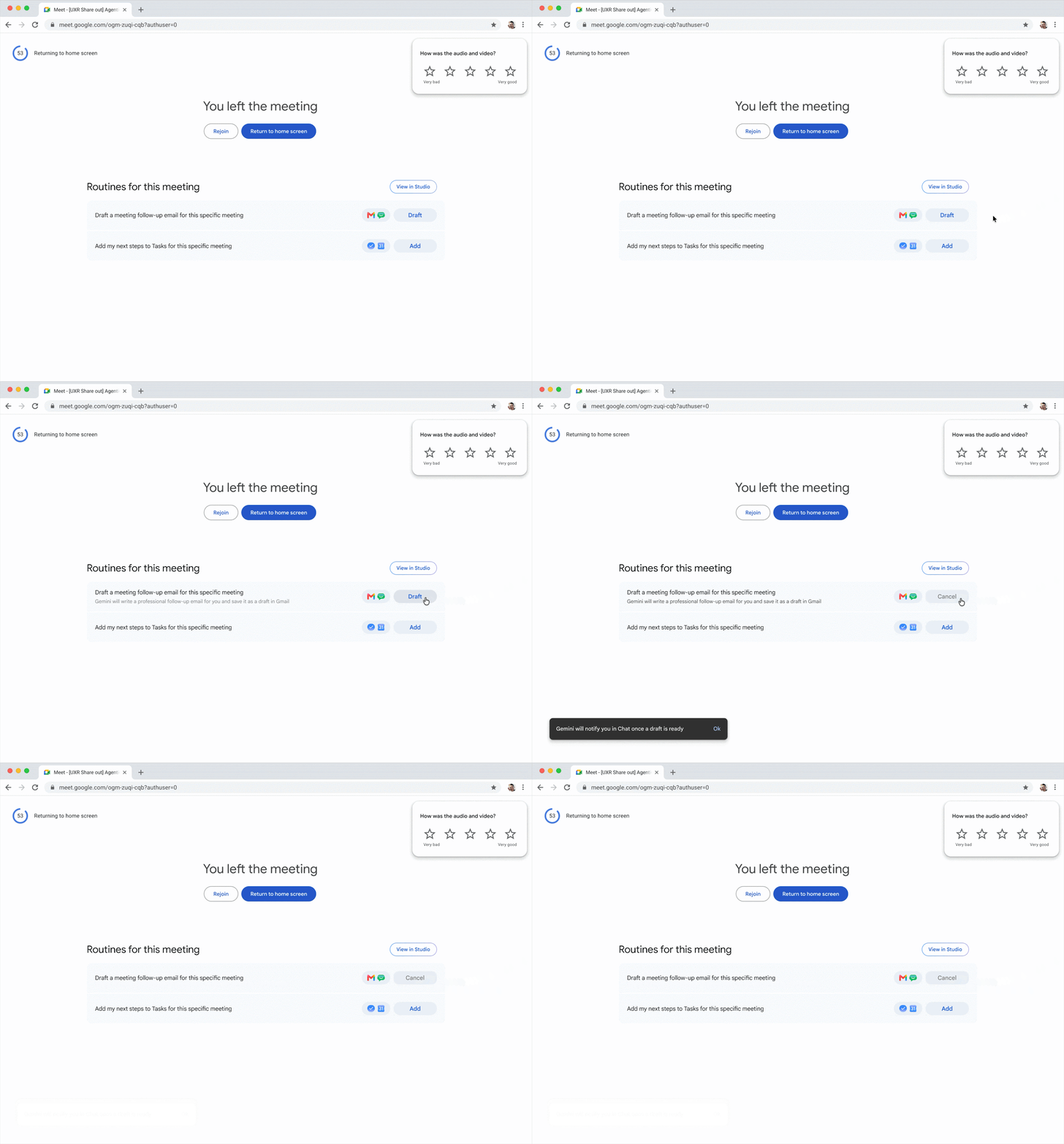
How do I enable next steps in Google Meet?
- Turn on "Take notes for me" during your meeting
- End the call as normal
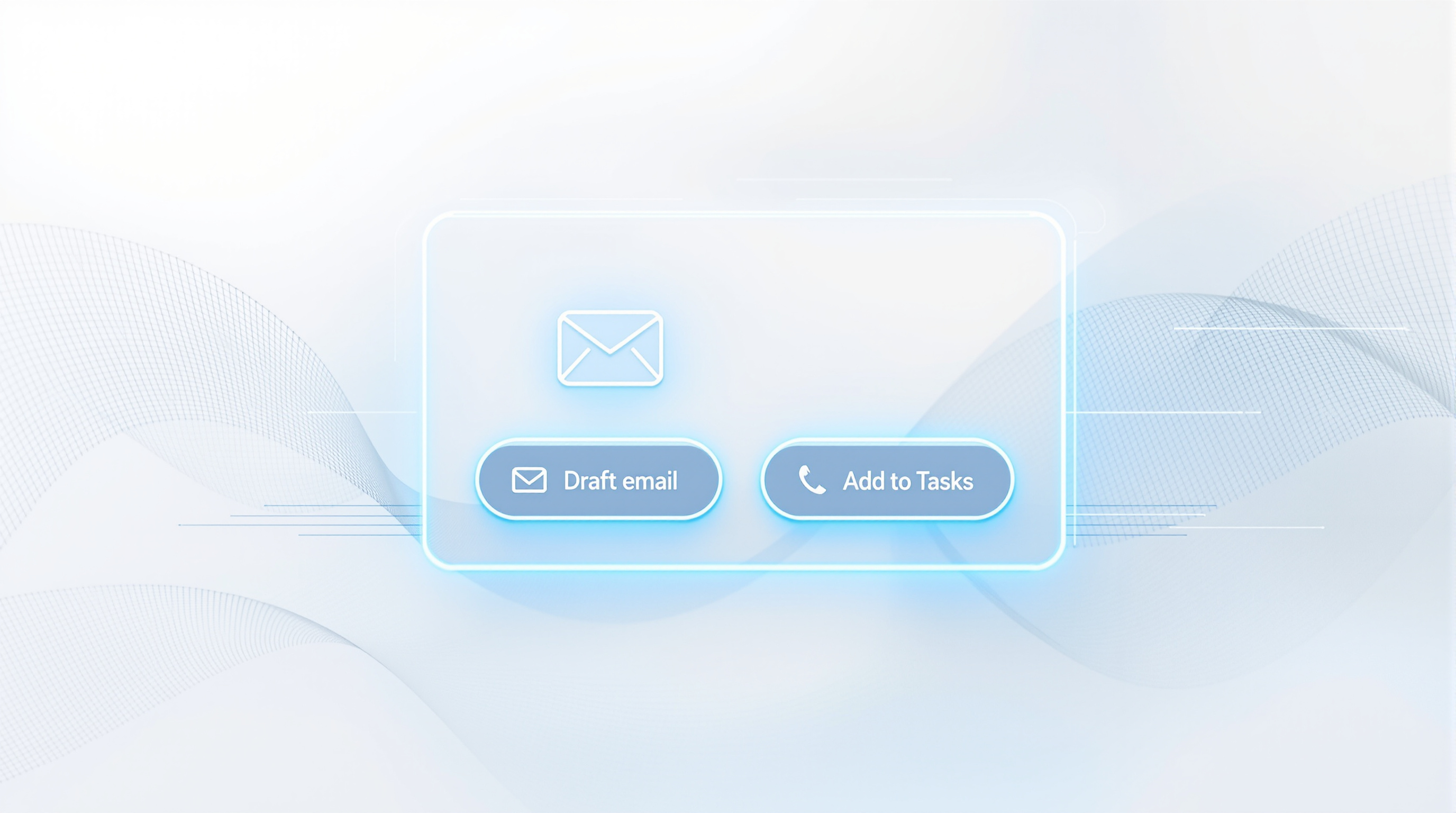
- Look for the "Routines for this meeting" section on your post-meeting screen
- Tap the next step you want—draft email or add tasks
You can also set a specific routine to run automatically for all your meetings where note-taking is enabled. Works for one-off calls and recurring meetings alike.
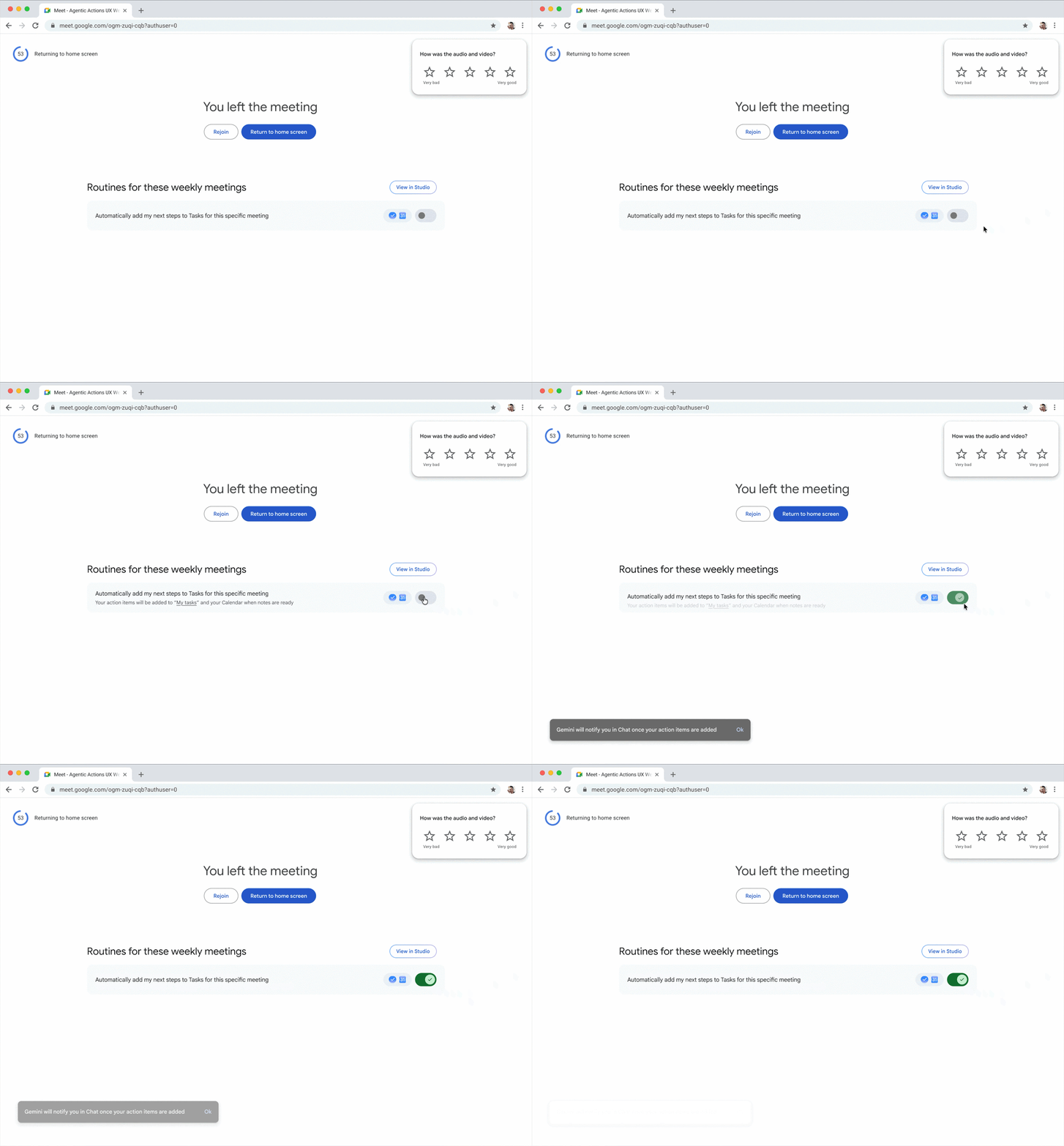
What next steps are available right now?
Currently, there are two:
- Draft a follow-up email – Creates a Gmail draft summarising the meeting and any agreed actions
- Add action items to Google Tasks – Exports tasks mentioned in the meeting directly to your task list
Google has indicated more routines are coming, though no specifics yet.
Which Google Workspace plans include this feature?
| Plan Type | Included |
|---|---|
| Business Standard | Yes |
| Business Plus | Yes |
| Enterprise Standard | Yes |
| Enterprise Plus | Yes |
| Google AI Pro for Education | Yes |
Admins can disable this at domain, OU, or group level through Workspace Studio Admin settings.
Frequently asked questions
Do I need to do anything special during the meeting?
Yes—"Take notes for me" must be enabled during the meeting. Without it, there's nothing for the AI to work from.
Can I review the email before it sends?
Absolutely. It creates a draft in Gmail, not a sent message. You review and edit before sending.
Where do I manage my routine settings after the first time?
Either from the Meet post-call screen or in the Workspace Studio Flows library.
Is this rolling out to everyone at once?
No. Google started an extended rollout in October 2026, so it may take a few weeks to appear in your organisation.
If you're considering Google Workspace for your organisation or need help configuring features like this across your team, Blue Chip Technologies Ltd. can help. We set up and support Workspace for businesses worldwide.
Get in touch:
- Contact us online
- Call: 1 (868) 609-2288
- Email: [email protected]