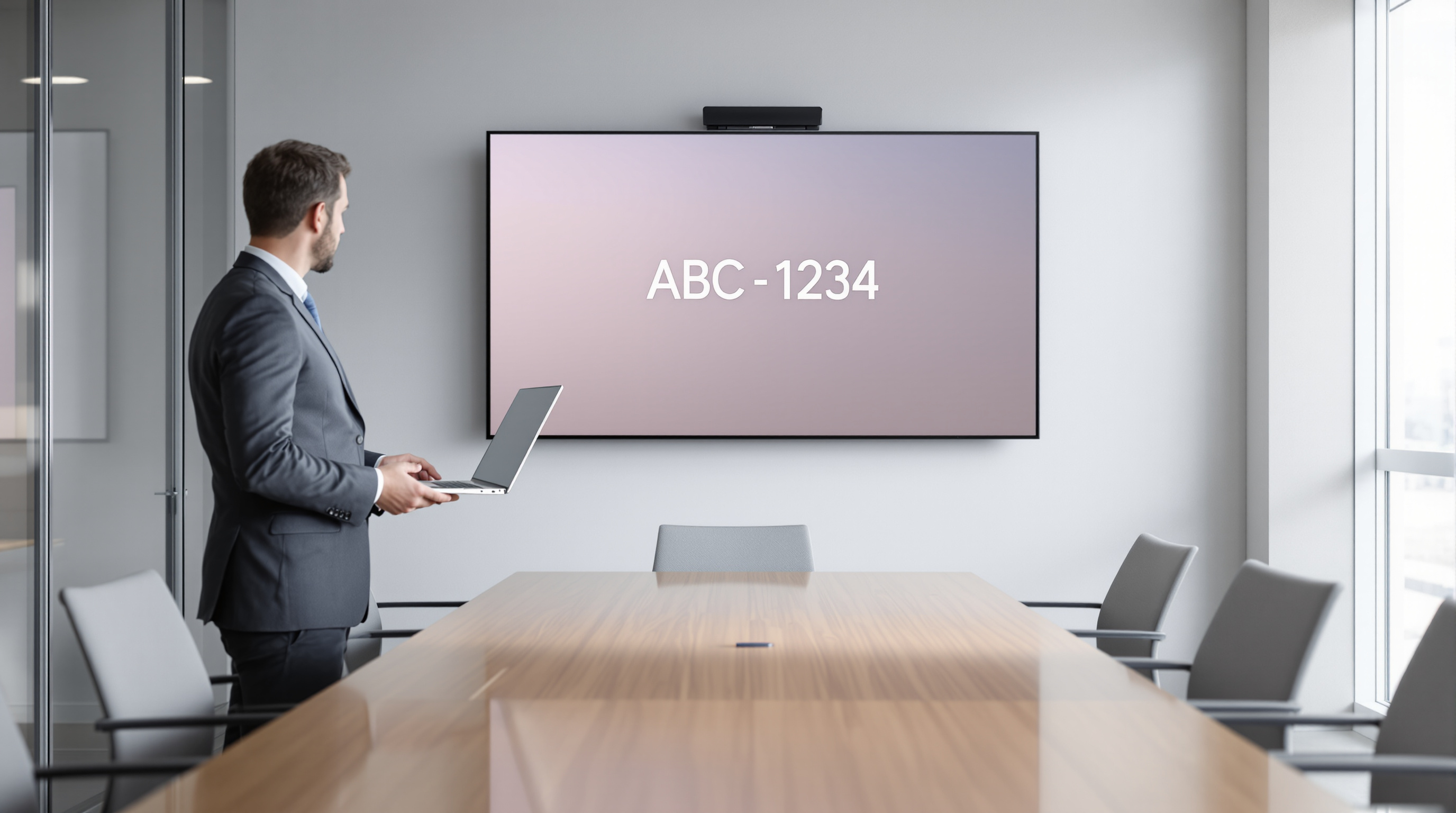
If your team uses Google Meet hardware in conference rooms, connecting personal devices to that equipment just got simpler. Google has rolled out room codes—a five-character alphanumeric code displayed on the meeting room screen—that anyone can type into their laptop or phone to link up with the room's camera, microphone, and display. No apps to install, no fiddling with Bluetooth settings, no waiting for ultrasound detection to kick in. You see the code, you type it, you're connected.
Why does this matter for businesses with meeting rooms?
The previous "Connect Room" feature relied on ultrasound signals to detect nearby hardware automatically. Clever idea, but it doesn't always work. Thick walls, certain laptop configurations, or company policies that disable ultrasound can all get in the way. When that happens, your 10 a.m. client call starts with five minutes of "Can you hear me?" and people crowding around a single laptop.
Room codes fix that. They're a manual backup that works every time, regardless of device settings or room acoustics. The code appears on the conference room display; participants enter it on their pre-call screen and instantly share the room's hardware.
How do room codes actually work?
- Walk into a conference room with Google Meet hardware.
- Look at the room display—you'll see a five-character code (letters and numbers).
- Open Google Meet on your laptop, tablet, or phone.
- On the pre-call screen, tap or click "Connect with room code."
- Enter the code.
- Your device now uses the room's camera, speakers, and microphone.
That's it. No pairing process, no IT ticket, no guesswork.
What do IT admins need to do?
Not much. The feature is switched on by default for all Google Meet hardware devices. If you'd rather disable it—perhaps for executive boardrooms or secure areas—you can toggle it off at the device level through the Admin console. Google's Help Centre has updated documentation on managing Connect Room settings if you need finer control.
For most organisations, leaving it enabled makes sense. It reduces support requests and lets visitors or staff from other offices join meetings without friction.
Does this work with all Google Workspace plans?
Yes—any Google Workspace subscription that includes Google Meet hardware support can use room codes. The rollout began 15 September 2026 and should reach all Rapid Release and Scheduled Release domains within about two weeks.
Frequently asked questions
Can guests or external participants use room codes?
Yes. Anyone with access to the pre-call screen in Google Meet can enter a room code, including guests joining via a meeting link.
Will this replace ultrasound-based Connect Room?
No. Ultrasound detection still works where it's available. Room codes are a fallback for situations where ultrasound isn't practical.
Is there a security risk with displaying the code on the screen?
The code only links a personal device to the room hardware for that session—it doesn't grant access to the meeting itself. Participants still need the meeting link or calendar invite to join the actual call.
Can I disable room codes for specific rooms?
Yes. Admins can turn the feature off at the device level, so sensitive spaces can remain code-free while general meeting rooms keep it enabled.
If you're running Google Workspace and want help setting up or managing Meet hardware across your offices, Blue Chip Technologies Ltd. can assist—whether that's remote configuration or on-site support in Trinidad & Tobago. Explore our Google Workspace solutions or get in touch:
- Contact page: bluechiptt.com/contact
- Phone: 1 (868) 609-2288
- WhatsApp: wa.me/18686092288
- Email: [email protected]