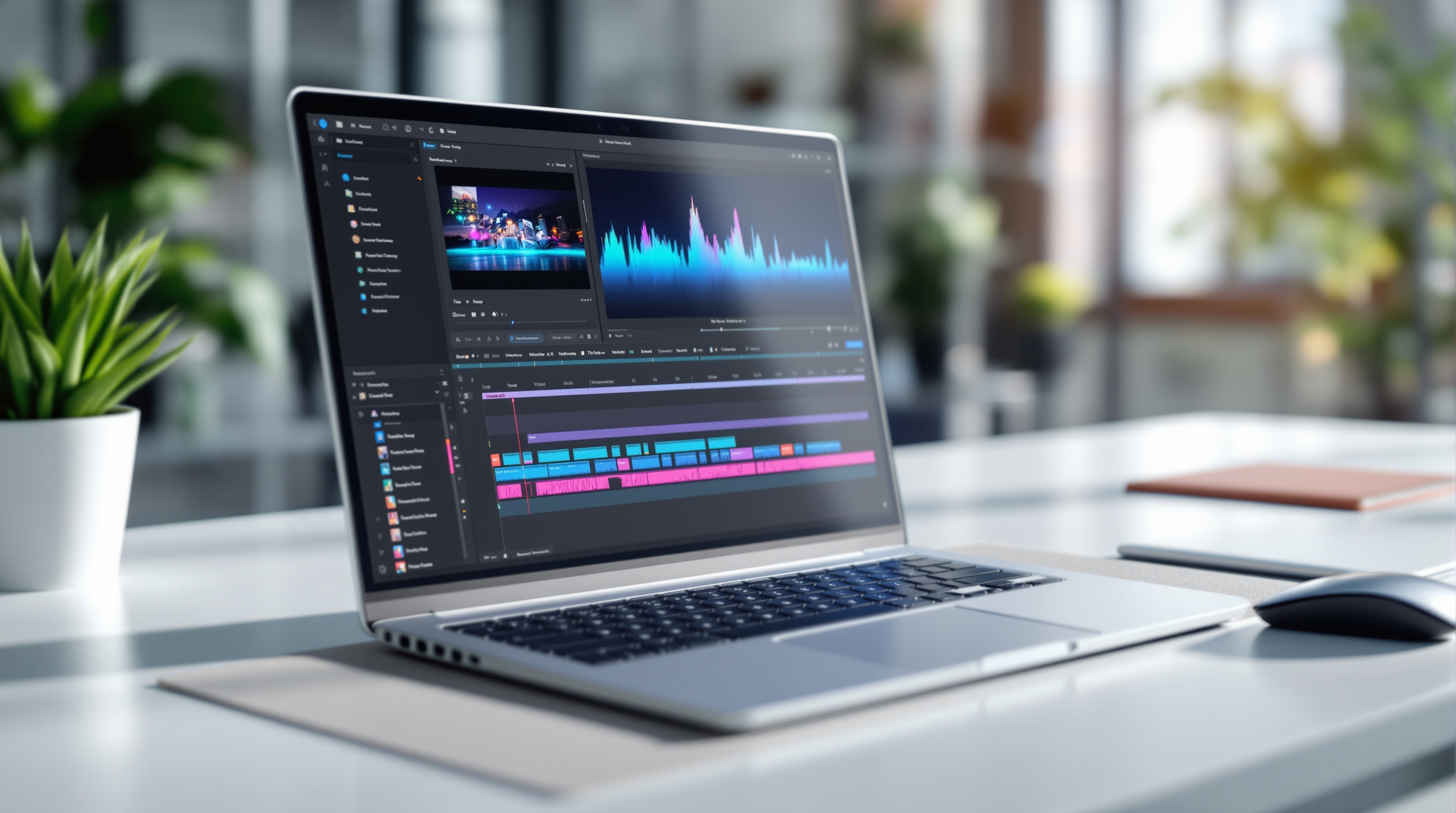
Google Vids now lets you extract audio tracks from video clips with a single click, giving you separate control over sound and visuals on your timeline. This means you can finally pull out a voiceover, remove unwanted background noise, or reuse audio across multiple scenes—without leaving your browser or juggling third-party editing software.
If you've ever tried to repurpose a training video's narration or sync audio across different scenes in a presentation, you'll appreciate how much time this saves. What used to require exporting, editing in separate software, and re-importing now happens directly in your Google Workspace environment.
What does audio extraction actually do?
When you extract audio from a video clip in Google Vids, the sound becomes its own independent element on your timeline. You can then:
- Move it freely – Place the audio under different video footage or extend it across multiple scenes
- Trim or delete it – Edit the audio without touching your video clip's timing
- Layer it – Run extracted audio underneath new visuals, B-roll, or title cards
Previously, your only options were mute or unmute—the audio stayed locked to its video clip and couldn't cross scene boundaries. That's changed.
How do I extract audio from a video clip?
It's straightforward:
- Select the video clip on your timeline in Google Vids
- Click the extraction option (single-click operation)
- The audio appears as a separate clip on your timeline
- Drag, trim, or reposition it as needed
No admin setup required. No settings to enable. The feature is rolling out to all Google Workspace accounts, Workspace Individual subscribers, and personal Google accounts.
When would a business actually use this?
A few real scenarios:
Training and onboarding videos – You've recorded a product walkthrough but want to use the same voiceover over updated screen recordings. Extract the audio, swap in new visuals, done.
Internal communications – Your CEO recorded a message but there's distracting background noise in parts. Extract the audio, trim the problem sections, and layer in cleaner ambient sound.
Sales presentations – You want consistent narration across multiple product demo scenes. Extract once, stretch across your timeline.
If your team already uses Google Workspace for collaboration, this keeps your video editing workflow in the same ecosystem—no context-switching to desktop software.
Do I need special permissions or licences?
No. There's no admin control to toggle and no end-user setting to configure. If you have access to Google Vids, you have access to audio extraction.
The rollout started October 19, 2026, with gradual availability over about 15 days. If you don't see it yet, it's likely still propagating to your account.
Frequently asked questions
Can I extract audio from any video I upload to Google Vids?
Yes. Any video clip on your timeline can have its audio extracted as a standalone clip.
Does extracting audio delete the original video's sound?
No. The original video clip remains intact. You get a copy of the audio as a separate timeline element—you can then mute the original video if you prefer.
Is this available on free Google accounts or just Workspace?
Both. Google Workspace customers, Workspace Individual subscribers, and users with personal Google accounts all have access.
Can I export just the extracted audio file?
Google Vids is primarily a video creation tool. For audio-only exports, you'd typically export your finished video and extract audio using a separate utility if needed.
Ready to get more from Google Workspace?
If your organisation is using Google Workspace—or considering it—Blue Chip Technologies Ltd. can help you set things up properly and make sure your team actually knows how to use features like this. We support businesses worldwide with remote deployment and training, plus on-site assistance for clients in Trinidad & Tobago.
Get in touch:
- Contact us online
- Call: 1 (868) 609-2288
- Email: [email protected]