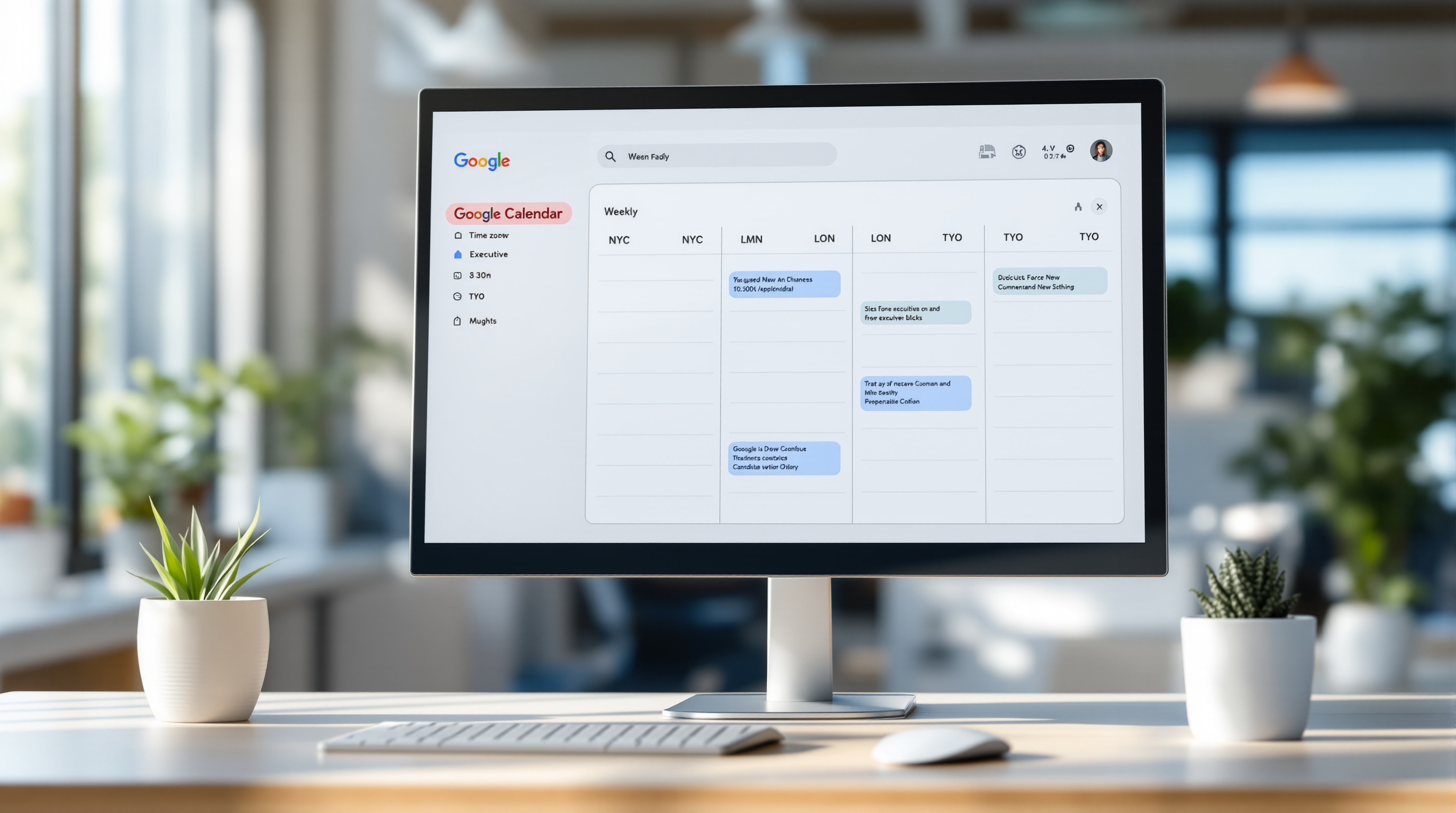
Google Calendar now lets you view three time zones at once on the web—your primary, secondary, and a new tertiary zone displayed side-by-side on your calendar grid. If you're coordinating meetings across London, Singapore, and Toronto (or any combination of regions), you can finally see all three local times without switching tabs or doing mental arithmetic.
This update is rolling out to all Google Workspace customers, Workspace Individual subscribers, and personal Google account users. Here's what it means for your day-to-day scheduling.
Why does viewing three time zones matter?
Two time zones often aren't enough. Think about it: your finance team's in one country, your development team's in another, and your client's somewhere else entirely. Until now, you'd configure two zones in Calendar, then mentally calculate the third—or keep a world clock open in another window.
With three zones visible, you can spot overlapping working hours instantly. No more "wait, is that 3pm or 3am for them?" moments.
How do I set up three time zones in Google Calendar?
Setting this up takes about a minute:
- Open Google Calendar on the web
- Click the gear icon and select Settings
- Scroll to the Time zone section
- Enable your secondary time zone, then enable the tertiary option
- Add custom labels to each (like "LON", "SIN", "TOR") so you can identify them at a glance
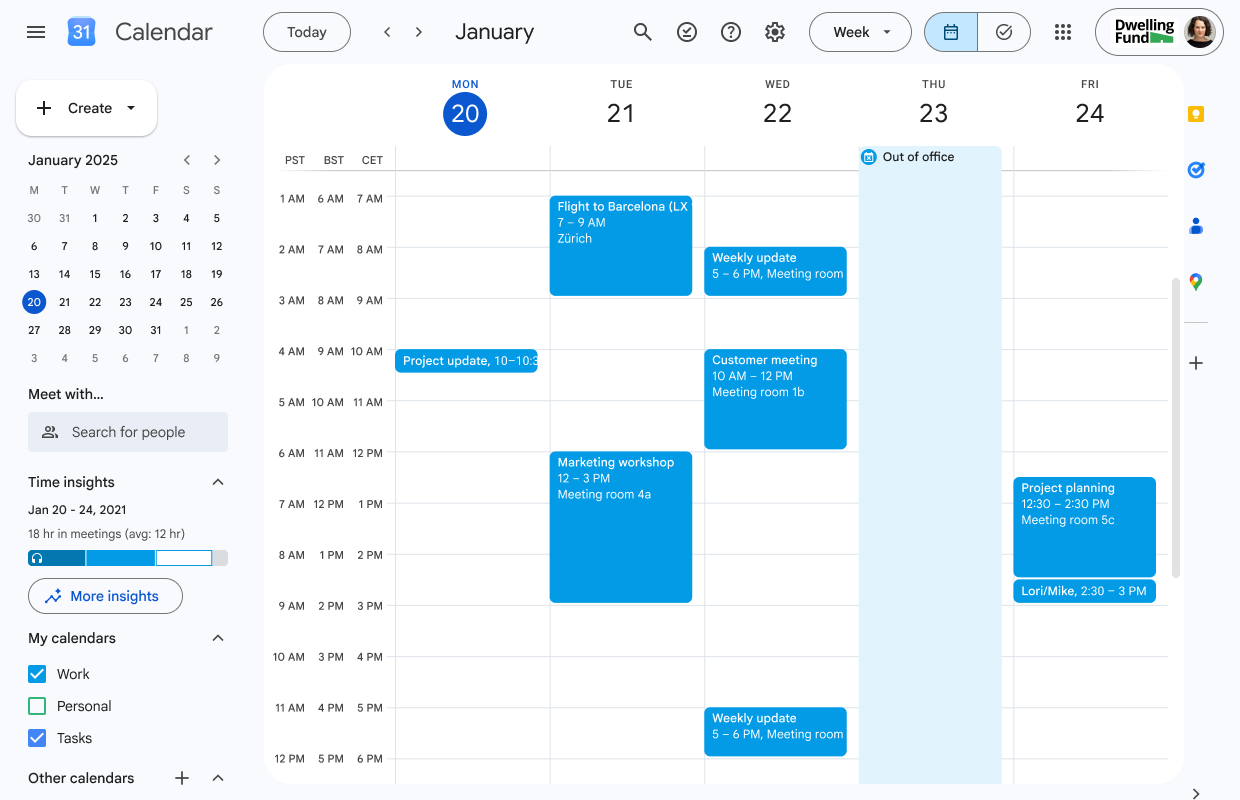
Once configured, you'll see three labelled columns on the left side of your Day, Week, and Custom multi-day views.
Does this work in the "Find a Time" scheduling view?
Yes. When you're creating or editing an event and use the "Find a Time" feature, all three time zones appear. This is particularly useful when you're trying to find a slot that works for attendees across multiple regions—you can compare availability without switching context.
Do admins need to enable this feature?
No admin configuration is required. The feature is available to end users directly. If you're managing a Workspace deployment, there's nothing you need to toggle on—your team can start using it as soon as it rolls out to your domain.
For more on configuring Google Workspace for your organisation, we can help with setup and training.
Frequently asked questions
Can I use custom labels for each time zone?
Yes. In Settings, you can add short labels like "NYC", "LDN", or "SYD" to each of your three display zones. These labels appear on the calendar grid.
Is this available on the mobile app?
This update applies to Google Calendar on the web. Mobile apps currently support fewer display options.
When will this feature be available?
Rapid Release domains started receiving it from 25 September 2026. Scheduled Release domains get full rollout from 12 October 2026.
Does this work with personal Google accounts?
Yes—it's available to all Google Workspace customers, Workspace Individual subscribers, and users with personal Google accounts.
Need help with Google Workspace?
Blue Chip Technologies Ltd. provides Google Workspace setup, migration, and ongoing support for businesses worldwide. Whether you need help configuring features like this or you're considering moving to Workspace entirely, we're happy to talk it through.
📞 Call: 1 (868) 609-2288
💬 WhatsApp: Chat with us
✉️ Email: [email protected]
🌐 Contact form: bluechiptt.com/contact