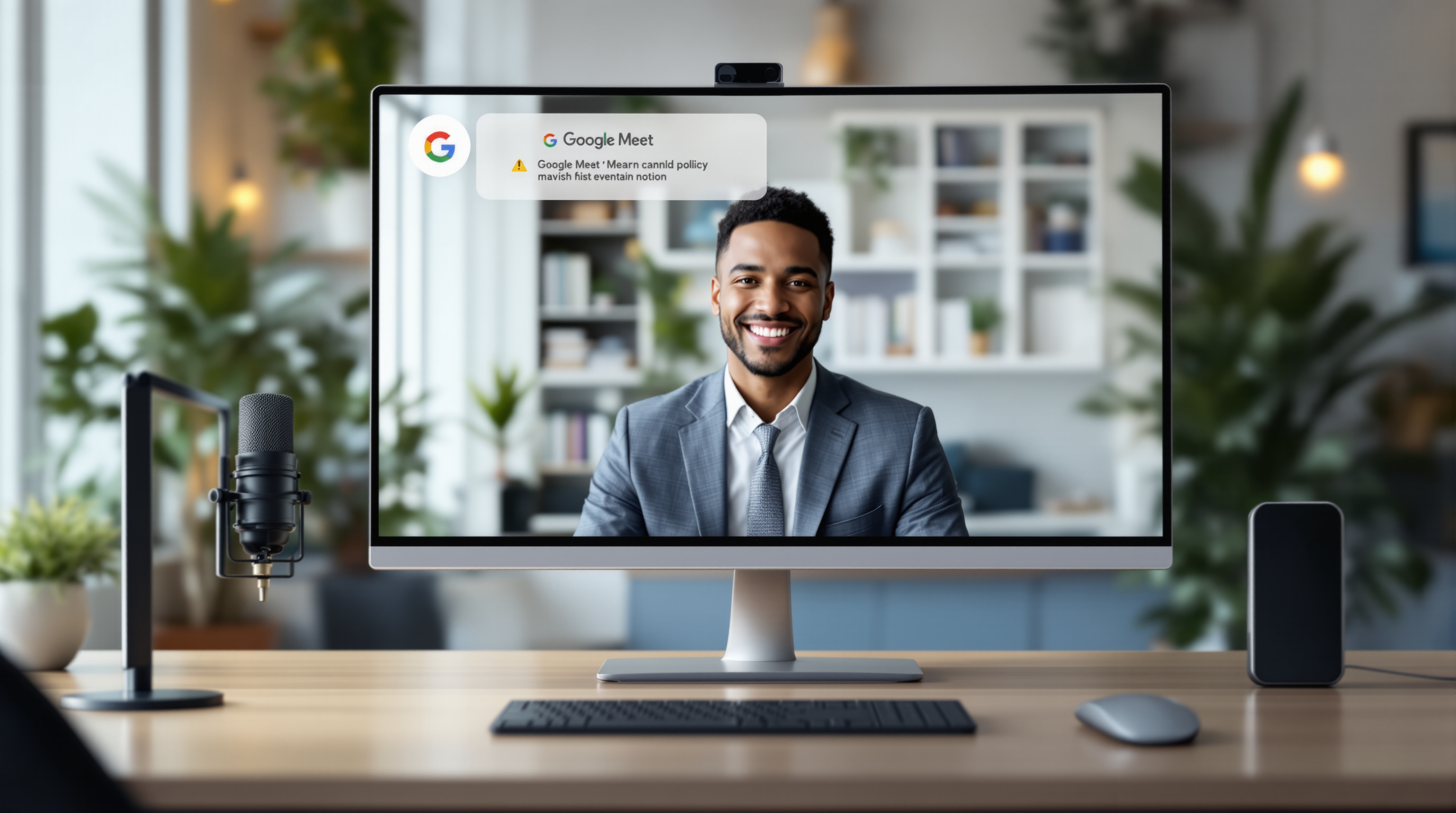
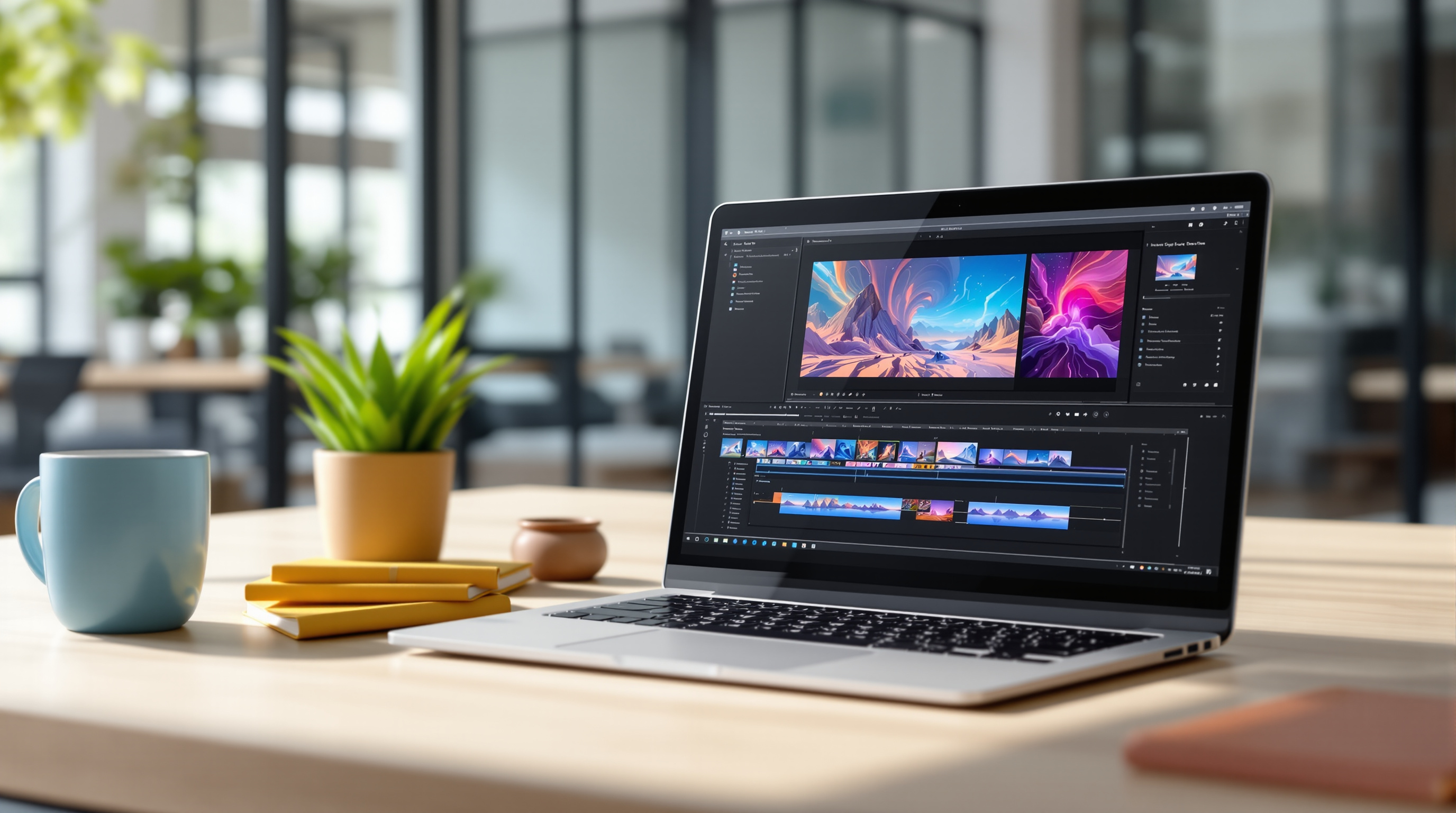
Google Vids now lets you generate AI video clips up to 15 seconds long, with noticeably better character consistency and more natural-sounding voices. If you've been creating internal training videos, product demos, or quick marketing clips, this update means fewer awkward cuts and more polished results straight from your browser.
The upgrade comes from Gemini Omni 1.2 Flash, which Google has integrated directly into Vids. For teams already using Google Workspace, this happens automatically—no extra setup, no admin toggles to flip.
What's actually different with the 15-second generation?
Previously, AI-generated clips in Vids topped out at shorter durations. Now you can slide the duration anywhere from 3 to 15 seconds per clip. That might sound small, but it changes how you approach video pacing. Instead of stitching together several tiny segments (and hoping they look consistent), you can capture a complete thought or product shot in one generation.
Think about a scenario: you're putting together a quick onboarding video for new hires. Before, you'd generate a 5-second intro, then another clip, then another—and the AI-generated presenter might look slightly different in each. Now you've got more room to work with, and the consistency improvements mean your "presenter" actually looks like the same person throughout.
Does character and product consistency really hold up?
This was one of the weaker points in earlier versions. You'd reference a product image or a character style, generate a few clips, and end up with subtle (or not-so-subtle) variations. The Omni 1.2 update specifically targets this.
Google's calling it "improved reference consistency"—when you feed in a reference image of your product or a character, subsequent generations stick closer to that original. It's not perfect (AI video still has its quirks), but the gap between "usable for internal comms" and "usable for client-facing content" is shrinking.
What about the voice quality?
The update includes what Google describes as "greater speaker variety with wider dynamic ranges." In plain terms: the AI voices sound less robotic. There's more natural pitch variation, and the output doesn't have that flat, monotone quality that screams "this was generated by a computer."
If you've ever sat through a training video with an obviously synthetic voiceover, you know how quickly attention drifts. Better vocal realism keeps viewers engaged longer.
Which Google Workspace plans include this?
The feature is available across most Workspace editions:
- Business: Starter, Standard, and Plus
- Enterprise: Starter, Standard, and Plus (including Essentials variants)
- Education: Education Plus, plus the AI Pro for Education and Teaching and Learning add-ons
- Nonprofits and Individual plans
- Personal Google accounts with Google AI Pro or Ultra
If your organisation has the AI Expanded Access add-on, you'll get higher usage limits for Omni in Vids.
How do I start using it?
- Open Google Vids from your Workspace apps or go directly to vids.google.com
- Create a new video or open an existing project
- Select the option to generate a video clip with AI
- Use the duration slider to set your clip length (up to 15 seconds)
- Add any reference images for characters or products you want consistent
- Generate and review the output
There's no admin control to enable—it rolls out automatically. If you don't see it yet, give it a day or two; Google's full rollout window is 1–3 days.
For a broader look at how Google Workspace tools fit together for business productivity, our Google Workspace solutions page covers the full suite.
Frequently asked questions
Do I need to install anything to use Omni 1.2 in Google Vids?
No. The update applies automatically within Google Vids for supported Workspace plans. Just open Vids and the new features are there.
Can I use my own product photos as references?
Yes. You can upload reference images, and the AI will attempt to maintain consistency with those visuals across your generated clips.
Is there a limit on how many clips I can generate?
Yes, usage limits apply based on your Workspace plan. Organisations with the AI Expanded Access add-on have higher limits. Check Google's AI limits documentation for specifics.
Will this work for videos longer than 15 seconds?
You generate clips up to 15 seconds each, then combine them in your timeline. So your final video can be any length—you're just working with longer building blocks now.
Ready to get more from Google Workspace?
If your team isn't using Google Vids yet—or you're wondering whether your current Workspace setup is the right fit—Blue Chip Technologies Ltd. can help you sort it out. We support organisations worldwide with remote setup and ongoing assistance, plus on-site help for clients in Trinidad & Tobago.
Get in touch:
- Contact us online
- Call: 1 (868) 609-2288
- Email: [email protected]