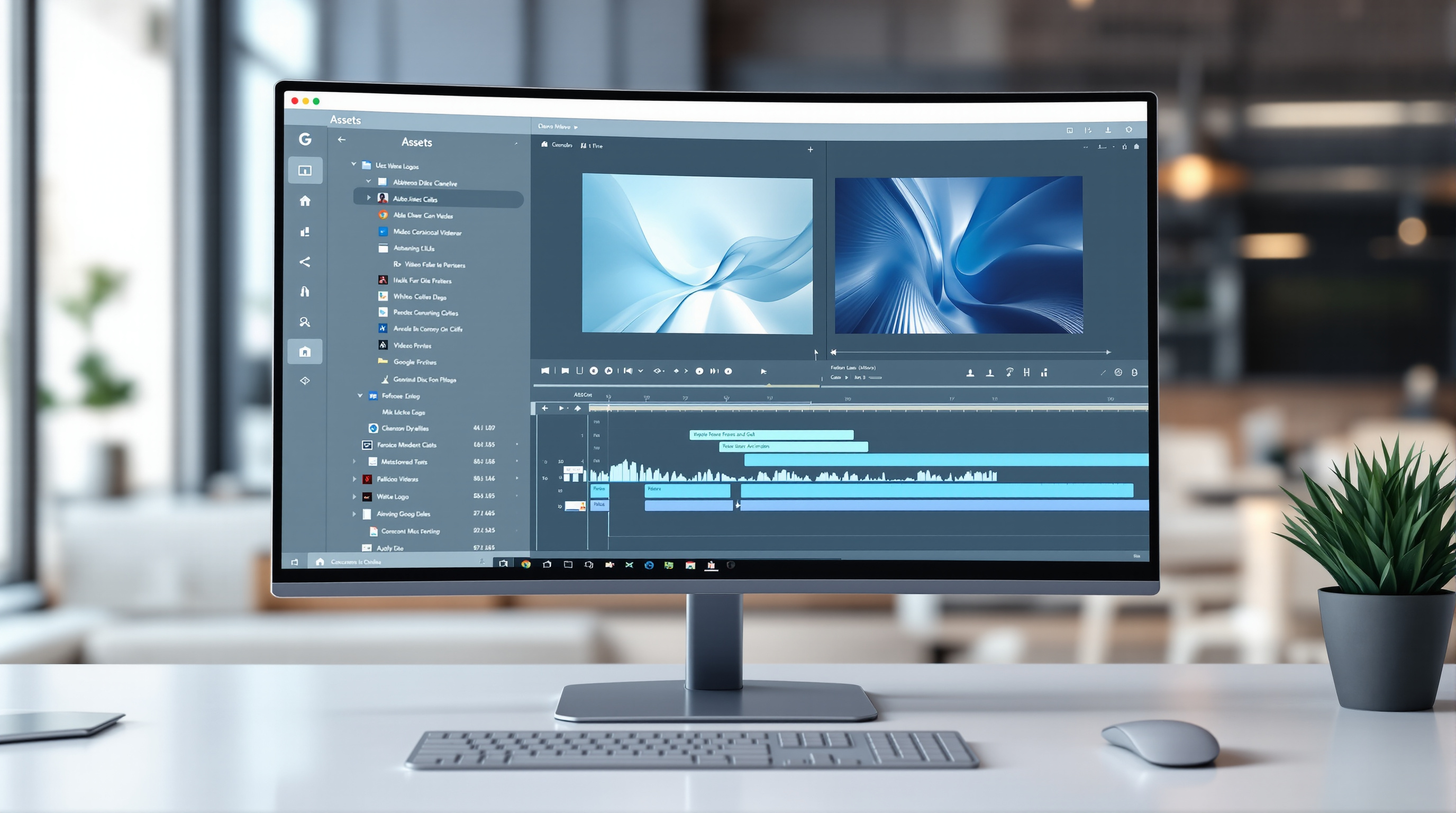
Google Vids now lets you save and reuse images, video clips, and audio files across multiple AI-generated videos within the same project. Instead of uploading the same logo, product shot, or background music every time you create a new clip, your media sits in a dedicated "Assets" section—ready to drag into your next generation. It's a small change that removes a genuinely annoying friction point.
Why does this matter for business video production?
If your team creates regular video content—training modules, product demos, internal announcements, social clips—you've probably noticed how repetitive the upload-and-organise cycle gets. Company logos, approved stock footage, branded intro music: you use them over and over.
With the new Assets feature in Google Vids, anything you upload during AI video generation is automatically stored for that project. Next time you prompt Gemini Omni to create a clip, those files appear in a sidebar. Pick what you need, skip the re-upload, and get on with the actual creative work.
This is especially handy when you're iterating. Say you're testing three different versions of a product launch video—same background music, same product images, different scripts. Previously you'd re-add those assets each time. Now they're just there.
What file types does the Assets section support?
Google hasn't published an exhaustive list, but the feature supports a variety of multimedia formats:
- Images – PNG, JPEG, and likely other common web formats
- Video clips – MP4 and standard video files
- Audio – MP3, WAV, and similar
Everything integrates directly into the AI video generation interface, so you don't need to jump between tabs or folders.
Who gets access?
The feature rolls out automatically—no admin toggle to flip, no user setting to enable. It's available across most Google Workspace editions:
| Edition type | Included plans |
|---|---|
| Business | Starter, Standard, Plus |
| Enterprise | Starter, Standard, Plus |
| Education | Fundamentals, Standard, Plus |
| Consumer | Personal accounts, Google AI Pro/Ultra |
| Other | Essentials, Frontline, Nonprofits |
Users with the AI Expanded Access add-on get higher usage limits for Omni in Vids, which may be worth considering if your team produces a lot of AI-generated video content.
Rollout timeline:
- Rapid Release domains: from 17 November 2026 (up to 15 days)
- Scheduled Release domains: from 2 December 2026 (1–3 days)
How do I start using it?
- Open Google Vids and create or open a project.
- Start an AI video generation with Gemini Omni.
- Upload any images, clips, or audio you want to include.
- Your uploaded files automatically appear in the new Assets section.
- For future generations in the same project, select assets directly from that section instead of re-uploading.
That's it. No configuration, no learning curve.
Frequently asked questions
Can I share assets between different Vids projects?
Not currently. The Assets section is project-specific, so files you upload in one project won't appear in another. You'd still need to upload them again for a new project.
Do I need to be a Workspace admin to enable this?
No. There's no admin control—the feature is on by default for all users in supported editions.
Does this work with Vids' manual editing tools, or only AI generation?
The Assets section is integrated specifically into the AI video generation experience. For manual editing, you'd still work with your uploaded files in the standard way.
Is there a storage limit for assets?
Google hasn't specified a per-project asset limit. Your overall Google Drive storage quota still applies to any files you upload.
Need help getting your team set up on Google Workspace?
Blue Chip Technologies Ltd. is an authorised Google Workspace reseller. We help organisations worldwide deploy, configure, and support Workspace—including newer tools like Google Vids. Whether you need a fresh setup or want to make sure your team is actually using what you're paying for, we're happy to chat.
Get in touch:
- Contact us online
- Phone: 1 (868) 609-2288
- Email: [email protected]
For more on our Google Workspace solutions, visit our cloud productivity page.