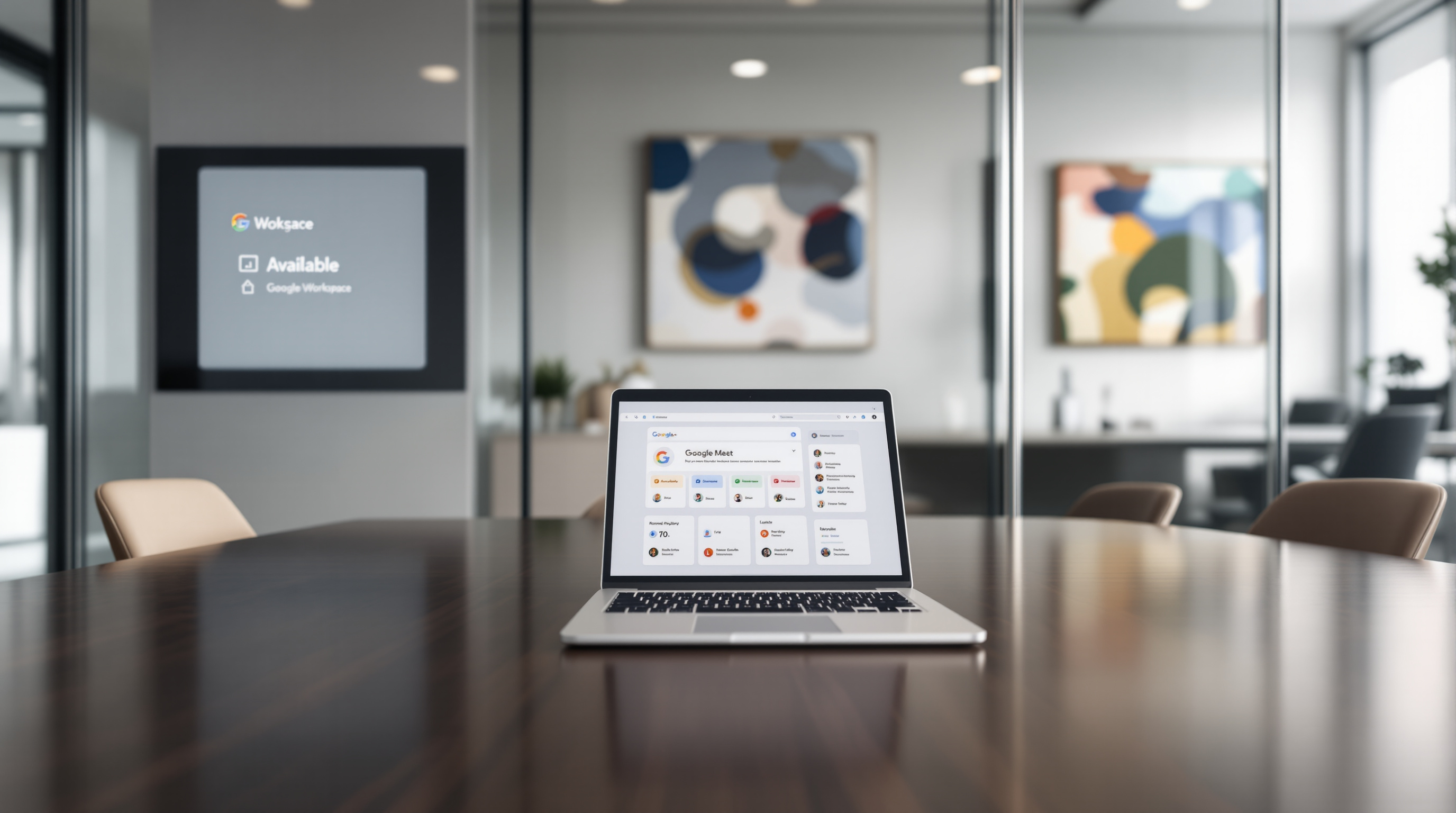
Google Meet now shows you exactly where your next meeting is—conference room name, building, even a Google Maps link for offsite locations—right on the homepage. No more clicking into calendar events or hunting through room lists. You see the room, click it, and get directions if you need them.
This update solves a small but persistent annoyance: that moment between meetings when you're trying to figure out which room you're supposed to be in, especially in offices with multiple buildings or floors. For teams that split time between the office and client sites, it's genuinely useful.
What actually changed on the Meet homepage?
When you open Google Meet on the web, your upcoming meeting cards now display location information directly. Here's what you'll see:
- Conference room names appear on cards for meetings happening now or starting within 10 minutes
- Your building's room gets priority – if a meeting has rooms booked across multiple locations, Meet checks your Working Location in Google Calendar and bumps the relevant room to the top
- Clickable wayfinding – tap a room name and (if your admin has configured it) you'll get building maps or campus navigation
- Google Maps integration – for meetings at street addresses rather than internal rooms, clicking opens turn-by-turn directions
For meetings further out, hover over the card to see location details. If there are multiple rooms or both a room and an address, you'll see an overflow button listing everything.
How does the room prioritisation work?
Meet pulls your Working Location from Google Calendar and cross-references it against the room metadata your admin has set up. So if you're marked as working from the Manchester office and a meeting has rooms booked in Manchester and London, the Manchester room appears first.
This matters most for larger organisations running all-hands meetings or cross-functional syncs where rooms get booked in several locations simultaneously.
What do admins need to do?
Nothing, actually. This feature uses the building and room resources you've already configured in the Google Workspace Admin console (Directory > Buildings and resources). If your rooms and buildings are set up properly, this works automatically.
That said, it's a good prompt to audit your room configurations. If building names are inconsistent or room metadata is incomplete, your team won't get the full benefit of intelligent prioritisation or wayfinding links.
For more on managing your Google Workspace environment, see our Google Workspace solutions page.
What do users need to do?
Just make sure your Working Location is set in Google Calendar. That's what tells Meet which building you're in so it can prioritise the right room. Google has a help article on setting your working location if you're not sure where to find it.
Beyond that, there's no setting to enable. Open Meet on the web and you'll see it.
When is this available?
The rollout started in September 2026:
- Rapid Release domains: Started 14 September 2026
- Scheduled Release domains: Started 28 September 2026
It's available to all Google Workspace customers and Workspace Individual subscribers.
Frequently asked questions
Does this work on the mobile app?
This update is for the Google Meet homepage on the web. Mobile behaviour may differ.
Can I turn this off if I don't want location details visible?
There's no user-level toggle. Location details display automatically based on what's in the calendar event.
What if my organisation hasn't configured building resources?
You'll still see street addresses for offsite meetings (with Google Maps links), but internal room prioritisation and wayfinding won't work without proper admin configuration.
Does this work for meetings I've been invited to externally?
If the external organiser has included a location in the event, you'll see it. Room prioritisation based on your Working Location only applies to rooms within your own organisation's directory.
Need help getting more from Google Workspace?
If you're not sure whether your buildings and rooms are configured correctly—or you want help rolling out Google Workspace for your team—Blue Chip Technologies Ltd. can help. We support businesses worldwide with setup, migration, and ongoing management.
Get in touch:
- Contact us online
- Call: 1 (868) 609-2288
- Email: [email protected]