Google Sheets now lets you pause automatic formula calculations and trigger updates only when you're ready. This new manual calculation setting means you can make dozens of changes to a complex spreadsheet without waiting for it to recalculate after every single edit—then update everything at once when you want to see the results.
If you've ever worked in a large spreadsheet with hundreds of formulas and felt it lag or freeze while you're trying to paste data, this is the fix you didn't know you needed.
Why does automatic calculation cause problems in large spreadsheets?
Every time you change a cell in Google Sheets, the system automatically recalculates every formula that depends on that cell. In a small spreadsheet, you won't notice. But in a file with thousands of rows, multi-sheet lookups, or complex formula chains? Each edit triggers a cascade of recalculations that can slow everything down.
This creates real headaches:
- Pasting a large data set takes ages because Sheets recalculates after every row
- Your screen freezes mid-edit while you wait for formulas to catch up
- You see confusing intermediate results before all your inputs are complete
Manual calculation mode lets you turn off that automatic behaviour temporarily. Make all your changes, then hit recalculate when you're done.
What's manual calculation mode actually useful for?
Bulk data updates: When you're importing or pasting large blocks of data into a spreadsheet with extensive formula networks, you can now enter everything smoothly without the system grinding to a halt after each action.
Financial modelling and scenario analysis: If you're adjusting multiple assumptions in a forecast—say, changing growth rates, cost inputs, and headcount projections—you can input all your variables first, then recalculate once to see the complete picture. No more watching half-baked numbers flash by while you're still typing.
Volatile functions: Spreadsheets using functions like RAND() or NOW() recalculate constantly by design. Manual mode freezes those values so your numbers stay stable while you're analysing results or presenting to colleagues.
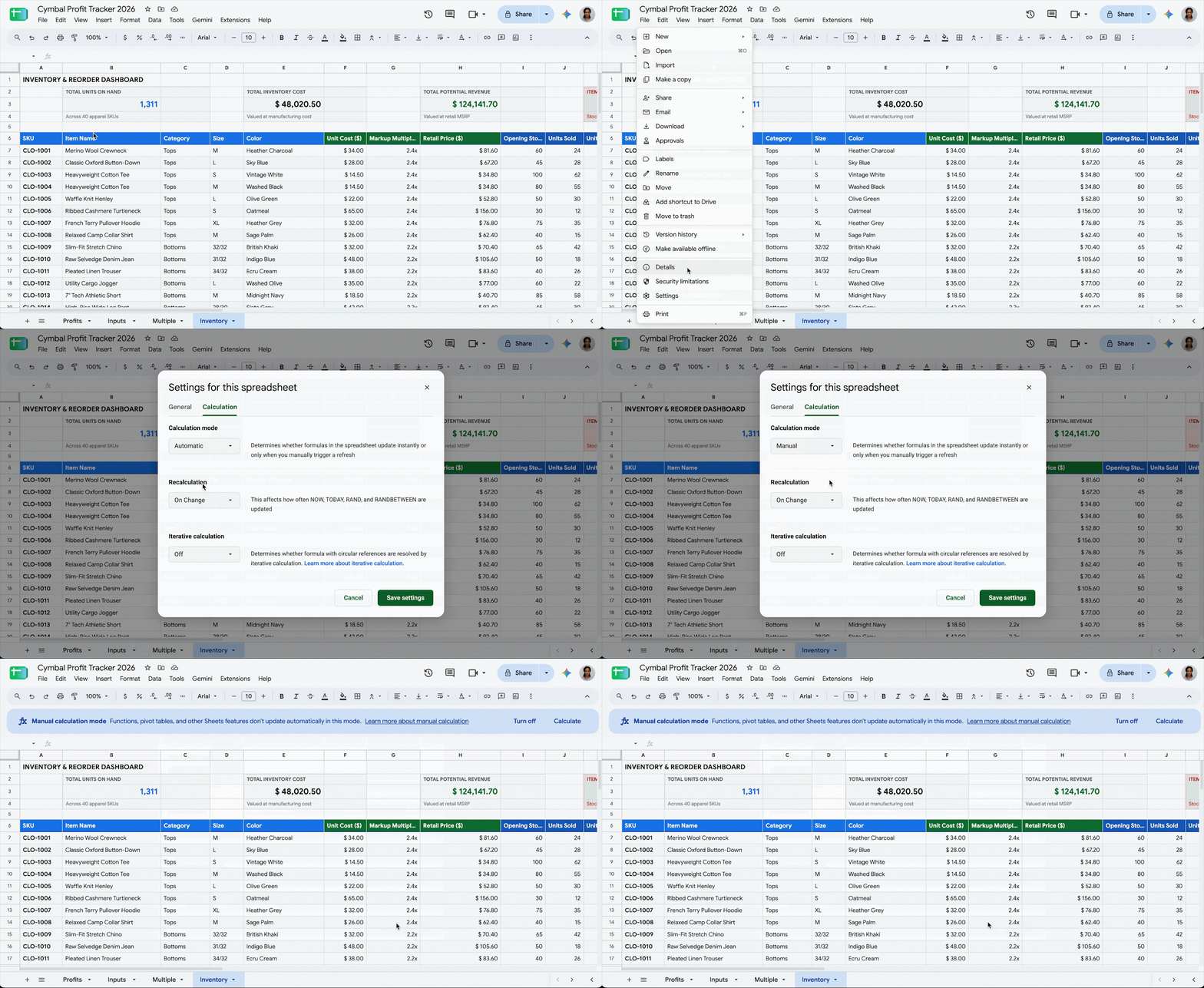
How do you turn on manual calculation in Google Sheets?
- Open your spreadsheet
- Go to File > Settings
- Select Calculation Settings
- Switch to manual calculation mode
- Make your edits
- Trigger recalculation when you're ready to see updated results
The setting is off by default, so your existing spreadsheets won't change behaviour unless you enable it.

Who gets this feature?
Manual calculation is available to all Google Workspace customers and Workspace Individual subscribers. There's no admin control required—individual users can enable it themselves on any spreadsheet they can edit.
If your organisation uses Google Workspace for business collaboration, this feature is already rolling out to your accounts.
Frequently asked questions
Will manual calculation mode affect other people editing the same spreadsheet?
The calculation setting applies to the spreadsheet itself, not individual users. If you enable manual mode, it affects everyone with edit access to that file.
Can I forget to recalculate and save incorrect data?
It's possible. Sheets will show you that manual mode is active, but you'll need to remember to trigger recalculation before relying on formula outputs. It's a tool for specific workflows, not a set-and-forget setting.
Does this work on mobile?
The feature is designed for the desktop web version of Google Sheets. Mobile functionality may vary.
Is there an admin setting to control this for my organisation?
No. Google hasn't provided an admin control for this feature—it's user-enabled on a per-spreadsheet basis.
Need help getting more from Google Workspace?
If your team relies on Google Sheets for reporting, forecasting, or data analysis, features like manual calculation can make a real difference to daily productivity. Blue Chip Technologies Ltd. helps businesses set up, migrate to, and get the most from Google Workspace.
Get in touch:
- Contact us online
- Call: 1 (868) 609-2288
- Email: [email protected]