
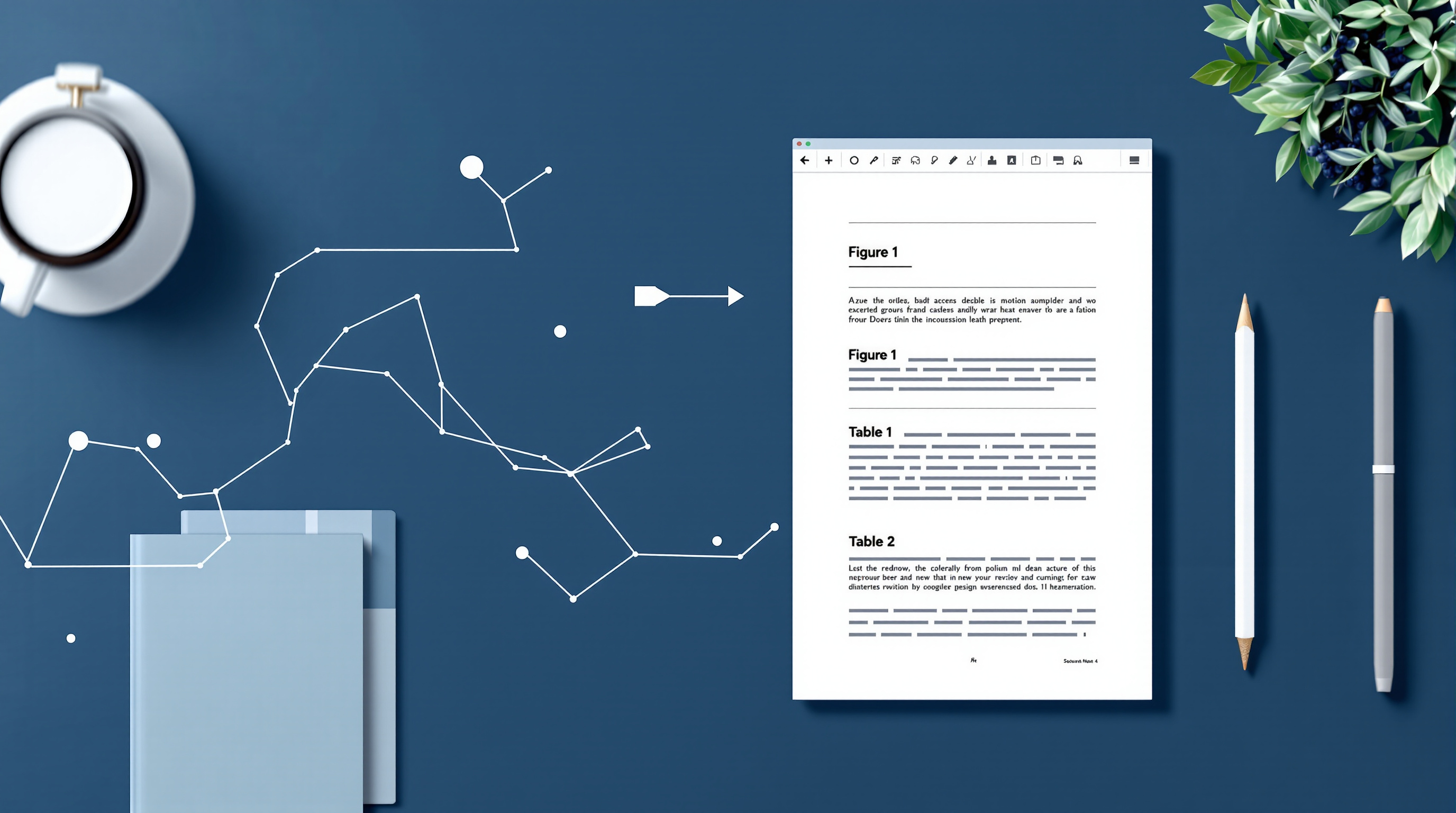
Google Docs now lets you insert inline captions that auto-number themselves, create cross-references that update dynamically, and generate clickable tables of captions—all without manual tracking. If you've ever spent an afternoon renumbering figures after moving a single diagram, these three features will save you real time.
What are inline captions, cross-references, and tables of captions?
Inline captions are numbered labels you attach to figures, tables, equations, or any element you want to reference. Type "Figure 1" once, and Docs handles the rest. Add a new figure before it? The numbers shift automatically. Delete one? They reorder themselves.
Cross-references are links that point to those captions. The clever bit: if "Figure 3" becomes "Figure 5" after an edit, every cross-reference updates its display text to match. No more broken references or misleading numbers scattered through a 40-page report.
Tables of captions work like a table of contents, but for your figures, tables, or equations. Docs generates a clickable list with page numbers, organised by label type, so readers can jump straight to what they need.
Why does this matter for business documents?
Anyone who's worked on contracts, technical manuals, or compliance reports knows the pain. You finalise a schematic, send it for review, and someone asks you to insert a new diagram on page 4. Suddenly every figure reference from page 5 onwards is wrong.
Previously, you'd fix those manually—or risk sending a document where "see Figure 12" actually points to Figure 11. Now Docs keeps everything in sync, which means:
- Fewer embarrassing errors in client-facing documents
- Less time on formatting busywork
- Easier collaboration when multiple people edit the same file
Does this work with Microsoft Word files?
Yes. Google Docs preserves these caption features when you import or export .docx files. Your formatting stays intact, which matters if you're exchanging documents with clients or partners who use Word. No more stripping out your carefully numbered figures just because someone opened the file in a different app.
For organisations already using Google Workspace for business communication and collaboration, this extends the interoperability you're used to.
How do I add captions and cross-references?
- Open your document in Google Docs.
- Go to Insert > Page elements > Inline caption.
- Choose a label type (Figure, Table, Equation) or create a custom one.
- Position your caption where you need it.
Once you have at least one caption:
- Go to Insert > Page elements > Cross reference.
- Select the caption you want to link to.
- Docs inserts a dynamic reference that updates if the caption number changes.
To generate a table of captions:
- Go to Insert > Page elements > Table of captions.
- Docs creates a clickable list, grouped by label type, with page numbers.
Frequently asked questions
Do I need admin approval to use these features?
No. There's no admin control required—these features are available by default in Google Docs for all Workspace customers, Workspace Individual subscribers, and personal Google accounts.
Will my captions break if I export to Word?
No. The formatting carries over when you export to .docx, so recipients using Microsoft Word will see your captions and references intact.
Can I create custom caption labels beyond Figure, Table, and Equation?
Yes. You can define your own labels (like "Exhibit" or "Appendix") and Docs will auto-number those separately.
Ready to get more from Google Workspace?
If your team isn't on Google Workspace yet—or you're not getting the most from it—Blue Chip Technologies Ltd. can help. We set up, migrate, and support Workspace for businesses worldwide, with remote delivery globally and on-site assistance in Trinidad & Tobago.
Get in touch: