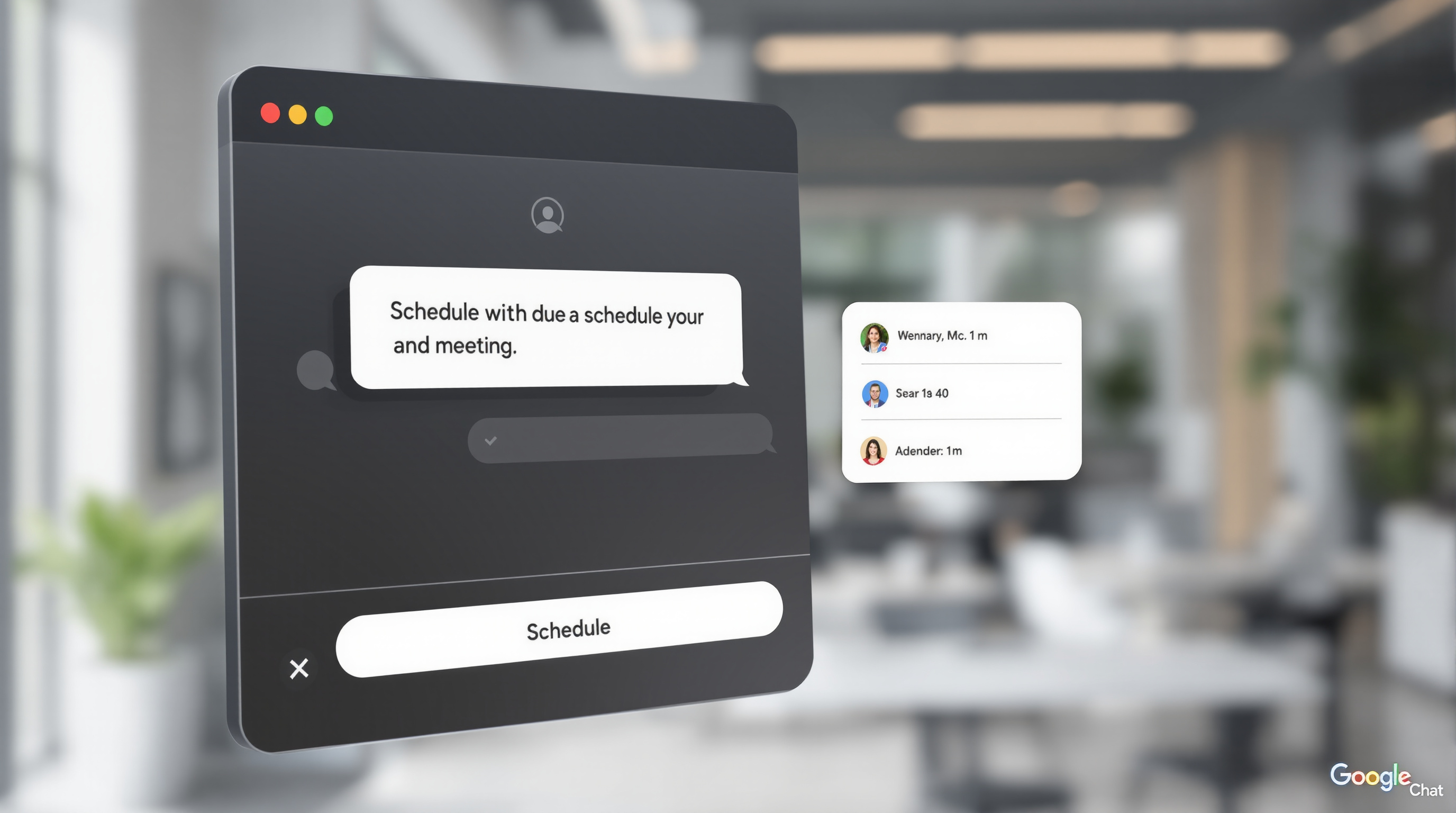

Google Workspace now lets you share custom Gemini skills with colleagues and attach files from Drive, Notebook, and Photos directly to those skills. That means your team can build reusable AI instructions once—say, a brand voice guide or an onboarding checklist—and everyone gets access to the same up-to-date resources without copying files around or re-explaining context to the AI every time.
At Blue Chip Technologies Ltd., we help organisations get more from their Google Workspace investment, and this update is worth understanding if you're using Gemini for day-to-day work.
What exactly are Gemini skills, and why should you care?
Think of a skill as a saved set of instructions that tells Gemini how to behave in a specific situation. Instead of typing "use our brand voice, keep it under 200 words, reference the style guide" every single time, you create a skill once and Gemini applies it automatically when relevant—or you @mention it in a chat.
The new sharing feature means you're not the only one who benefits. Your whole team can install the same skill, so everyone's working from identical instructions.
How does file attachment change things?
Previously, skills were just text instructions. Now you can attach:
- Google Drive files – documents, spreadsheets, presentations
- Gemini Notebook content – your research and notes
- Google Photos – images for reference
- Local files – up to 100 MB total per skill
Here's the practical bit: Drive files and Notebooks stay synced in real time. Update your brand guidelines doc, and every skill referencing it immediately works from the new version. No manual re-uploads, no version confusion.
What are some real use cases?
A few scenarios we've seen clients get excited about:
- Brand consistency – Marketing creates a skill that references the brand guidelines PDF in Drive. Anyone drafting copy gets consistent tone without hunting for the document.
- New starter onboarding – A team lead builds a skill grounded in the employee handbook. New hires can ask Gemini questions and get answers based on actual company policy.
- Curriculum planning – Educators attach a notebook with lesson frameworks. The skill helps generate lesson plans that align with existing materials.
These aren't hypothetical—they're the kinds of workflows that save hours across a team each week.
How do you share a skill with your team?
- Open the Gemini app on the web (mobile sharing isn't available yet).
- Go to the Skills page.
- Select the skill you want to share.
- Choose Share and add recipients with View or Edit permissions.
- If your skill includes Drive files, make sure recipients also have access to those files.
Recipients get an email notification and can review the skill before installing it. Once installed, Gemini uses it automatically when relevant.
What do admins need to know?
Skill sharing follows your organisation's existing Drive sharing settings. If you allow external Drive sharing, skills can be shared externally too. Admins can disable skill sharing entirely via the Admin console if needed—it's on by default.
There aren't separate controls for file attachments within skills, so your Drive governance policies do the heavy lifting here.
For more on managing Google Workspace across your organisation, see our Google Workspace solutions page.
Frequently asked questions
Can I share skills from the Gemini mobile app?
Not yet. Sharing and permission management currently only works in the Gemini web app. You can still use shared skills on mobile once they're installed.
What happens if someone updates a Drive file attached to a shared skill?
The skill automatically references the latest version. No action needed from skill users.
Is there a file size limit?
Yes—100 MB total across all files attached to a single skill.
Do I need a paid Google Workspace account?
This feature is available to all Google Workspace customers and users with personal Google accounts.
If you're looking to get your team set up with Google Workspace or want help building out skills that actually save time, we're here. Blue Chip Technologies Ltd. supports clients worldwide with remote setup and ongoing assistance.
Get in touch:
- Contact us online
- Call: 1 (868) 609-2288
- Email: [email protected]