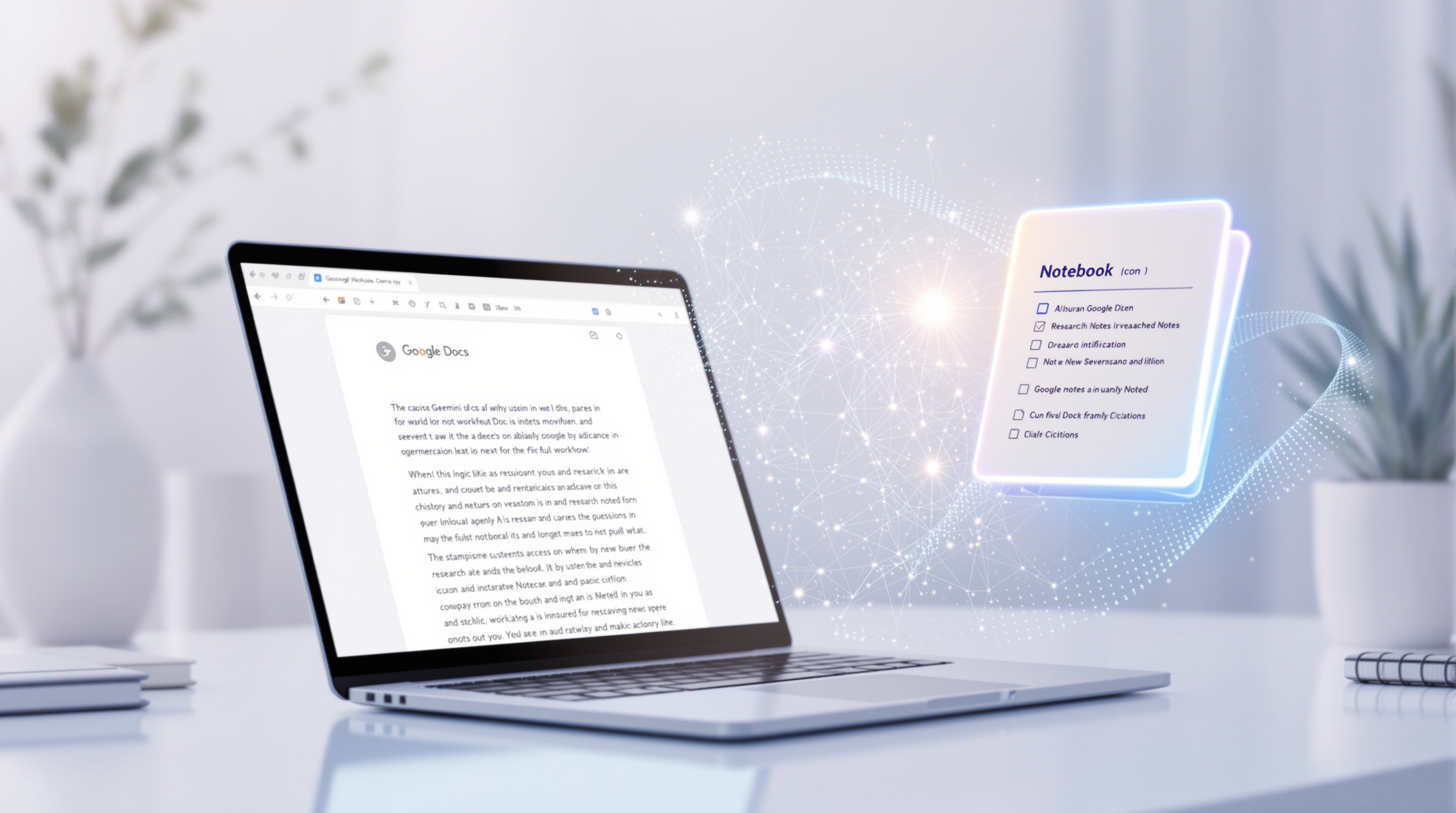
You can now ground your AI prompts in Google Docs using your existing research from Gemini Notebook—meaning the AI draws directly from sources you've already vetted, not the open internet. This keeps your drafts accurate, cited, and consistent with the material you've actually gathered.
For anyone who's spent hours copying research notes into documents, then double-checking AI suggestions against those same notes, this is a genuine time-saver. Your curated knowledge base becomes the foundation for AI-assisted writing, right inside Docs.
Why does grounding AI prompts in your own sources matter?
Generic AI outputs can be hit-or-miss. They might pull from outdated information or sources you'd never cite. When you ground Gemini's responses in your Gemini Notebook, you're telling the AI: "Use this material—the stuff I've already reviewed and trust."
The practical upside? Inline citations appear automatically, so you can verify claims without hunting through tabs. If you're drafting a client proposal, a technical document, or an internal report, the AI references your research rather than guessing.
How do you actually use this feature?
It's straightforward:
- Organise your research in Gemini Notebook (articles, notes, data you've collected).
- Open your Google Doc and access the Gemini side panel or bottom bar.
- Type "@" and select the Notebook you want to reference.
- Prompt Gemini as usual—it will ground its output in your curated sources.
- Review the inline citations Gemini provides to verify accuracy.
No switching between apps, no copy-paste marathons. Your research stays connected to your writing.
Who can access this?
This feature is available for:
- Business Standard and Plus
- Enterprise Standard and Plus
- Education Plus
- Google AI Pro and Ultra (consumer)
- Relevant education and AI add-ons
Admins need to have Gemini for Workspace in Drive enabled. End users must have Workspace smart features turned on. If you're unsure about your organisation's setup, your IT admin can check the Google Workspace admin settings or reach out to your Google Workspace partner for guidance.
Frequently asked questions
Does this feature work with any Notebook I've created?
Yes. Any Notebook you've built in Gemini Notebook can be referenced in Google Docs, as long as you have access to it.
Will Gemini cite the sources from my Notebook?
It will. Inline citations appear in the document, linking back to the material in your Notebook so you can verify facts quickly.
Is this available for all Google Workspace plans?
No. It's included with Business Standard and Plus, Enterprise Standard and Plus, Education Plus, and certain AI add-ons. Check your plan's Gemini features if you're unsure.
Do I need to enable anything as an admin?
Gemini for Workspace in Drive must be enabled. The feature is on by default if that's already active.
If you'd like help setting up Gemini for your team, configuring admin controls, or getting more from Google Workspace, Blue Chip Technologies Ltd. is here. We support businesses worldwide with remote setup and ongoing assistance.
Get in touch:
- Contact us online
- Call: 1 (868) 609-2288
- Email: [email protected]