Let's be honest—VAT season in Trinidad & Tobago can feel like a scramble. You're digging through receipts, cross-checking invoices, and hoping the numbers add up before the IRD deadline. If that sounds familiar, you're not alone. But it doesn't have to be this stressful.
QuickBooks Online can take most of that headache off your plate, automatically tracking VAT on your sales and purchases so you're not piecing things together at the last minute.
Why VAT Tracking Gets Messy (And How to Fix It)
The problem usually isn't that business owners don't care about VAT compliance—it's that the day-to-day gets busy. A supplier invoice here, a customer payment there, and before you know it, you've got a shoebox of receipts and a spreadsheet that stopped making sense two months ago.
QuickBooks Online handles this differently:
- Automatic VAT calculations – Set your tax rates once, and QuickBooks applies them correctly to invoices and expenses.
- Real-time tracking – Your VAT liability updates as you record transactions, not just when you run a report.
- Bank feed integration – Connect your business account and categorise transactions as they come in, VAT included.
- Receipt capture – Snap a photo of a receipt on your phone, and it's stored with the expense. No more lost paper.
Setting Up VAT Properly From the Start
Here's where a lot of businesses trip up: they start using QuickBooks but never configure the VAT settings correctly. Then six months later, the reports are a mess.
When you set up QuickBooks Online, make sure you:
- Enable VAT tracking in your settings and select the correct tax period.
- Create or verify your tax rates – standard rate, zero-rated, exempt. Get these right from day one.
- Assign the correct VAT code to each product, service, and expense category you use.
- Reconcile regularly – don't wait until filing time to check if your numbers match your bank statements.
If you've already been using QuickBooks without proper VAT setup, it's fixable—but the sooner you sort it out, the easier it'll be.
Running Your VAT Reports
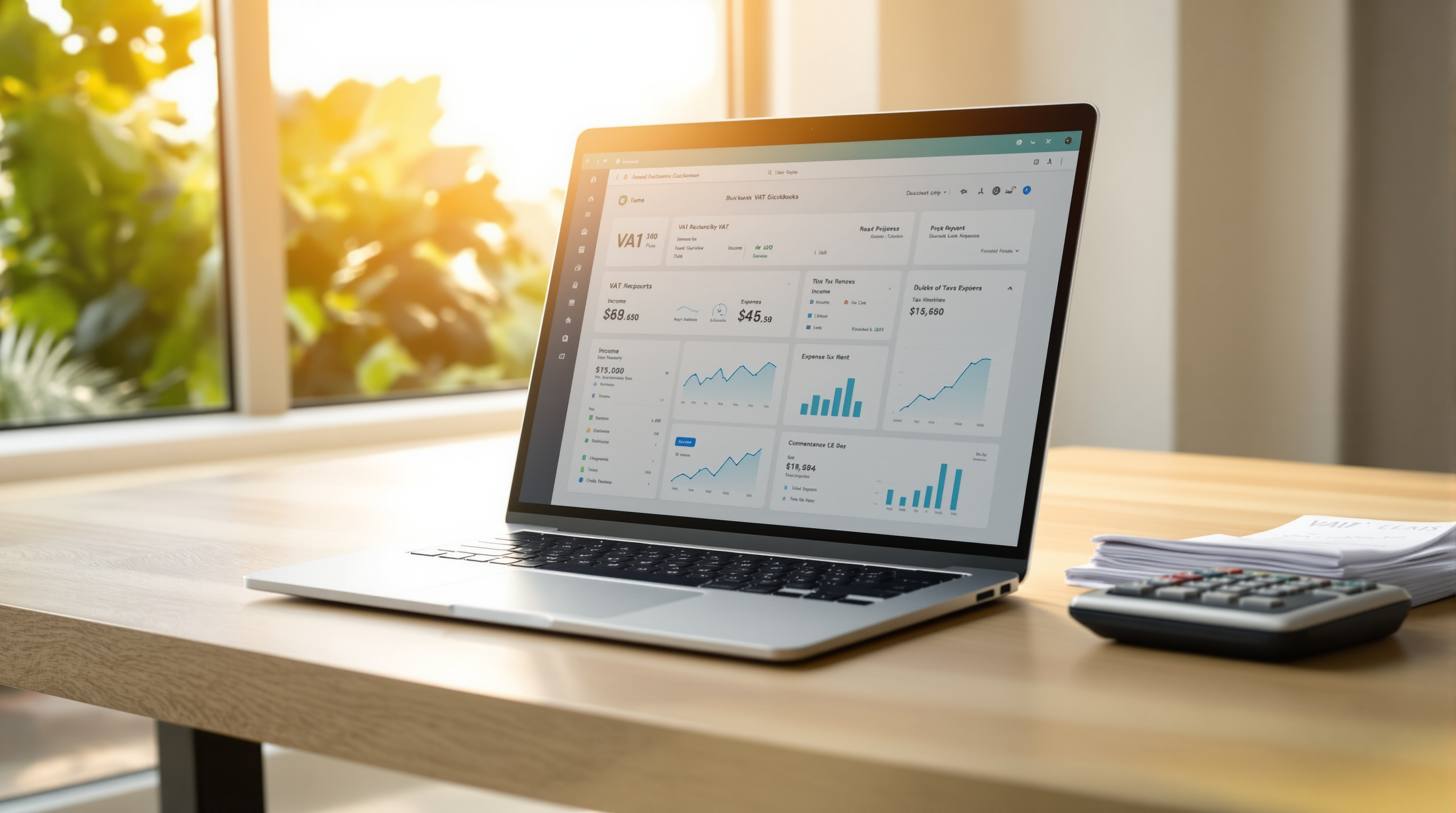
When filing time comes around, QuickBooks gives you what you need without the guesswork. The VAT Summary Report shows your collected VAT (output tax) and your paid VAT (input tax), so you can see exactly what you owe—or what's owed to you.
You can also drill down into the details if the IRD ever asks questions. Every transaction is there, linked to the original invoice or receipt.
A Quick Reality Check
QuickBooks Online won't magically fix years of disorganised records overnight. But if you commit to entering transactions consistently and categorising them correctly, you'll have clean, audit-ready VAT records without the end-of-quarter panic.
And if you're not sure whether your current setup is right? That's exactly what we help with.
Let Blue Chip Set You Up Right
We've helped plenty of T&T businesses get QuickBooks Online configured properly—VAT settings, chart of accounts, bank connections, the works. Whether you're just getting started or need to clean up an existing setup, we can sort it out.
Ready to get your VAT tracking under control?
- Call us: 1 (868) 609-2288
- WhatsApp: Send a message
- Email: [email protected]
- Contact form: bluechiptt.com/contact