
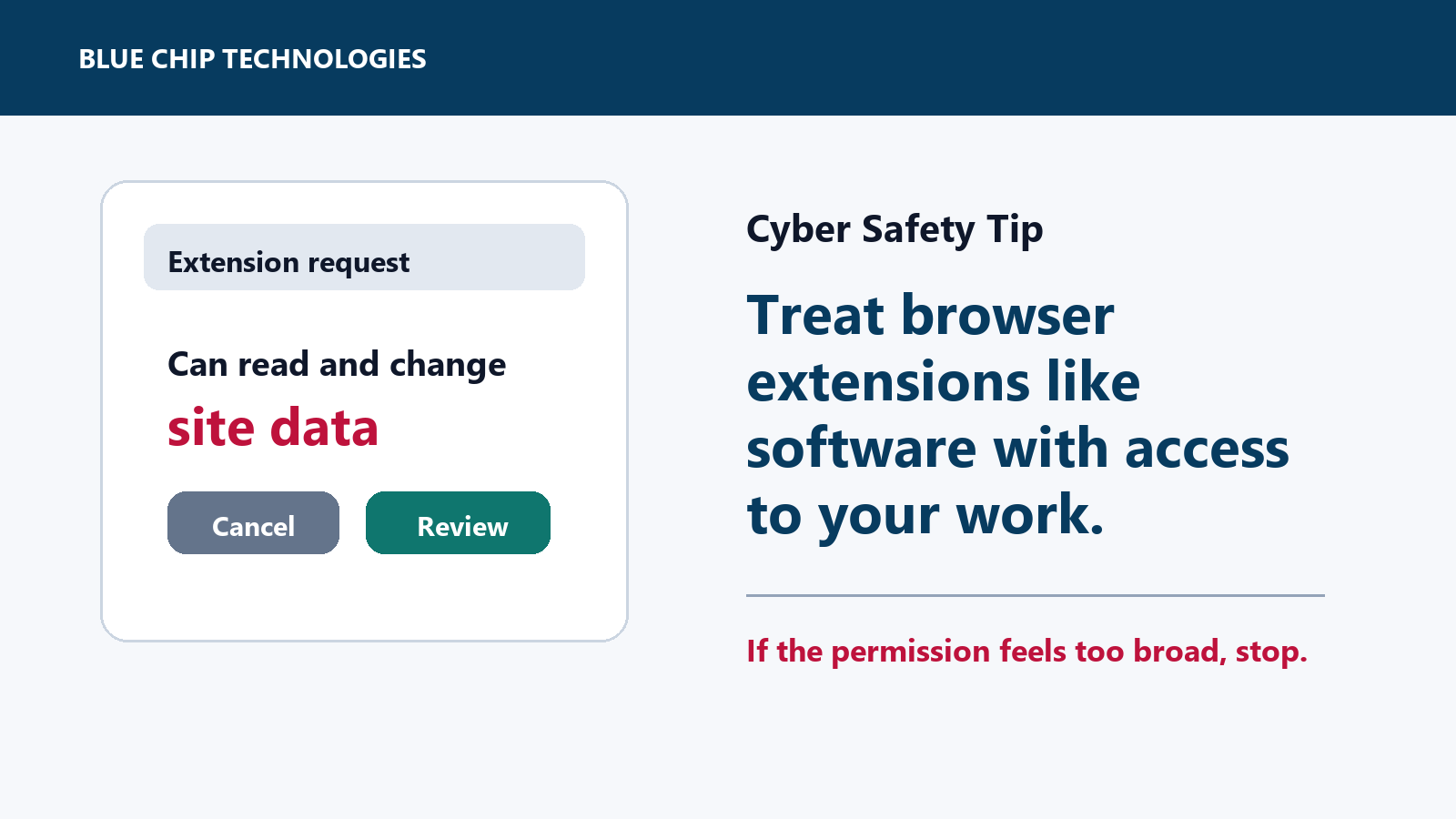
Before You Install a Browser Extension, Check What It Can Read
Browser extensions can be genuinely useful. They help with passwords, screenshots, grammar checks, meeting notes, PDF tools, shopping, ad blocking, and many other everyday tasks.
They can also sit directly inside the browser where staff read email, open invoices, use banking sites, access Microsoft 365 or Google Workspace, and sign in to business systems.
That is why the safest habit is simple: before you install a browser extension, check what it can read and change.
Why this matters
Some extensions only need limited access. Others ask for broad permissions, including the ability to read or change data on websites you visit.
In a business browser, that can include sensitive places:
- webmail
- cloud storage
- CRM and accounting systems
- supplier portals
- HR or payroll pages
- banking and payment sites
- admin consoles
A popular extension is not automatically safe. Reviews, download counts, and a polished listing are useful signals, but they are not a security approval.
What to check before installing
Before you add an extension to a work browser, pause and ask:
- Do I actually need this for work?
- Is it from a developer or vendor I recognize?
- Does the permission request match the job the extension claims to do?
- Is it asking to read or change data on every website?
- Could this tool see customer, finance, HR, legal, or supplier information?
- Does the business already provide an approved tool for the same job?
If the answer is unclear, do not install it first and ask questions later.
What to do instead
- Install extensions only from official browser stores.
- Keep the list small. Remove extensions you no longer use.
- Review extension permissions from time to time.
- Restrict site access where the browser allows it.
- Avoid extensions on banking, payroll, admin, and finance browser profiles unless they are approved.
- Ask IT or management before installing tools that touch work email, files, passwords, meetings, or customer data.
For businesses using managed browsers, it is worth maintaining an approved extension list instead of leaving every user to decide alone.
Red flags
Stop and check before installing if an extension:
- promises something too good to be true
- asks for access to all websites when it only needs one site
- has a vague developer name
- recently changed ownership or branding
- pushes you to install from a link in an email or popup
- asks for permissions that do not match its purpose
If you already installed one
If you are unsure about an extension already installed on a work device, remove it and report it to your IT support contact. If the extension had access to sensitive work systems, change affected passwords from official websites and watch for unusual account activity.
Browser extensions should make work easier, not quietly expand risk. A quick permission check before installation is a small habit that can prevent a much bigger problem later.
Sources: Google Chrome Web Store Help - Install and manage extensions; CISA - Evaluating Your Web Browser's Security Settings.