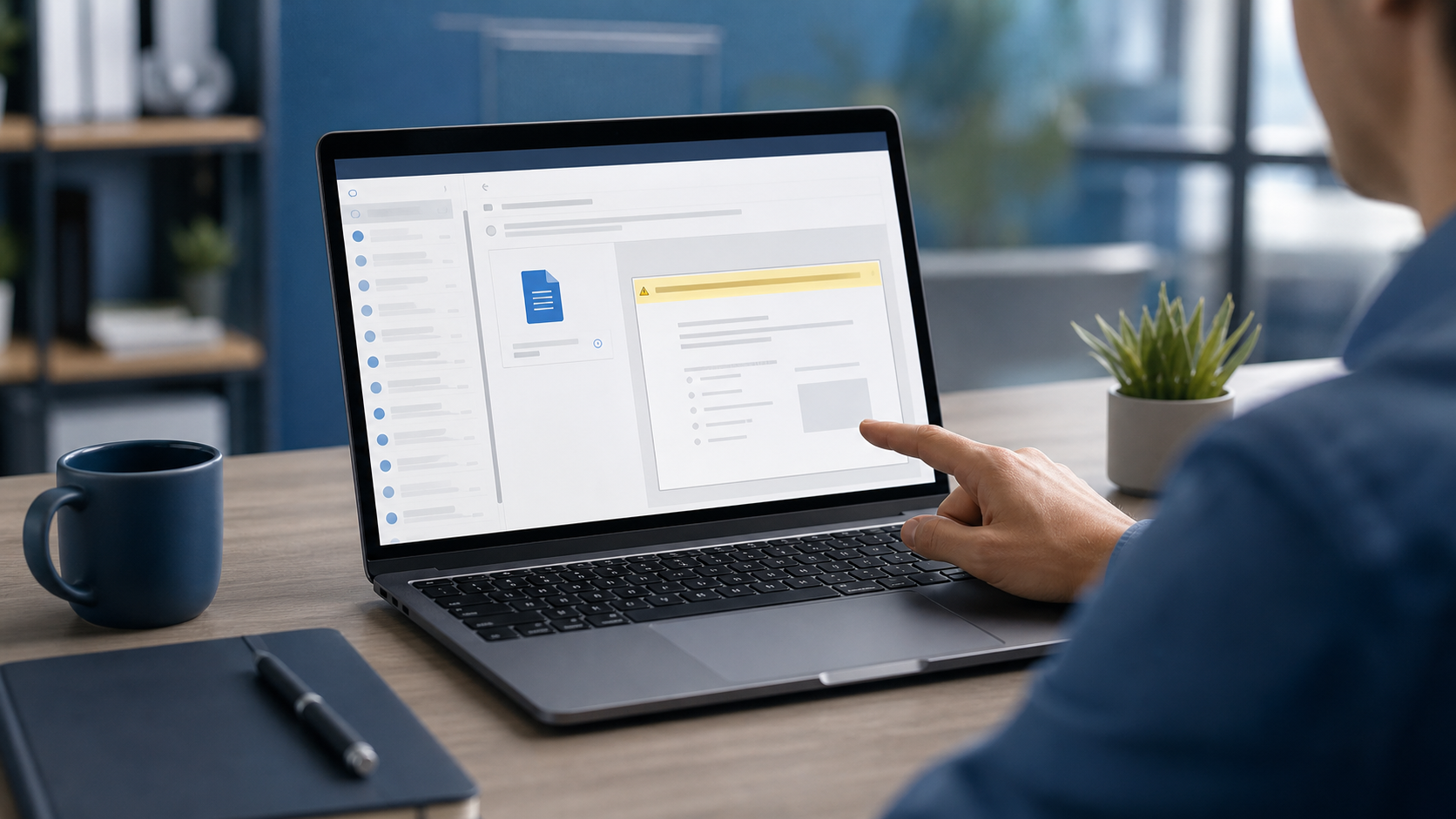
If a File Asks You to Enable Editing, Stop and Check First
Most suspicious emails do not arrive with a giant warning sign.
They arrive looking routine: an invoice, a delivery note, a scanned form, a job application, a statement, a purchase order, or a document that seems to come from a customer, supplier, or manager.
Sometimes the danger does not start when you open the file. It starts when the file asks you to click Enable Editing, Enable Content, or another prompt that reduces the protection your device applied automatically.
That is why this is a useful office rule for everyday staff: if a file was not expected, or the request feels unusual, do not rush past the warning just to make the document work.
Microsoft uses Protected View and attachment preview features for a reason. Microsoft’s guidance explains that active content such as scripts, macros, and ActiveX controls is disabled during preview, and that files from the internet or other potentially unsafe locations can contain malware. The FTC’s small-business guidance also warns that unexpected emails can use links, downloads, and attachments to load malware or trick staff into sharing sensitive information.
For businesses in Trinidad and Tobago, this matters because many scams are aimed at normal office work. The attacker is trying to make the message feel routine so the person reading it will finish the task without slowing down.
What the warning is trying to tell you
When Word, Excel, PowerPoint, Outlook, or another business app opens a file in a limited or protected mode, it is often doing that because the file came from email, the internet, or another location the device does not fully trust yet.
That does not automatically mean the file is malicious. It does mean the file deserves a quick check before you allow it to do more.
Be extra careful if the file:
- arrives unexpectedly
- claims to be urgent or overdue
- asks you to enable editing just to read basic information
- asks you to enable content, macros, or external connections
- comes from a sender you do not usually work with
- uses a filename that is vague or oddly formatted
- does not match your normal business process
One warning sign is enough to pause.
What staff should do
Do:
- Preview the attachment first if your email system allows it.
- Check who sent it, why you received it, and whether the filename matches the work you expected.
- Verify unusual documents by calling or messaging the sender through a trusted contact method you already know.
- Ask a coworker, manager, or IT support contact before enabling editing or content on an unexpected file.
- Use the official company process for invoices, payroll files, HR documents, and supplier paperwork.
- Keep Microsoft 365, Office apps, antivirus, and browsers updated so built-in protections stay current.
What not to do
Do not:
- click Enable Editing or Enable Content just because the document looks blank or incomplete
- assume a familiar company name means the file is safe
- open attachments from unexpected emails on your phone just because it feels quicker
- bypass your normal checking process because the message says the matter is urgent
- forward the file around the office asking others to “see if it opens”
- send passwords, MFA codes, or banking details in reply to the same message
A real customer, supplier, or coworker can tolerate a short verification delay. A malicious file depends on you not taking that pause.
What to do if you are unsure
Stop before enabling anything.
Contact your manager or IT support using your usual internal method and share the email, filename, and why it looks suspicious. If the document claims to be from a supplier or customer, verify with a phone number or contact record you already trust, not the details inside the email.
If you already clicked the prompt, opened a suspicious attachment, or entered information afterward, report it immediately. Early reporting gives IT a better chance to contain the issue, scan the device, and protect other accounts or users.
A simple office habit that helps
Use this rule with staff:
Unexpected file plus warning prompt equals stop and verify.
That small habit can prevent a fake invoice, phishing message, or malicious attachment from turning into a larger business problem.
Sources: FTC — Scams and Your Small Business: A Guide for Business; Microsoft Support — Open, save, and edit attachments received in Outlook; Microsoft Support — What is Protected View?; NCSC — Spotting cyber attacks.