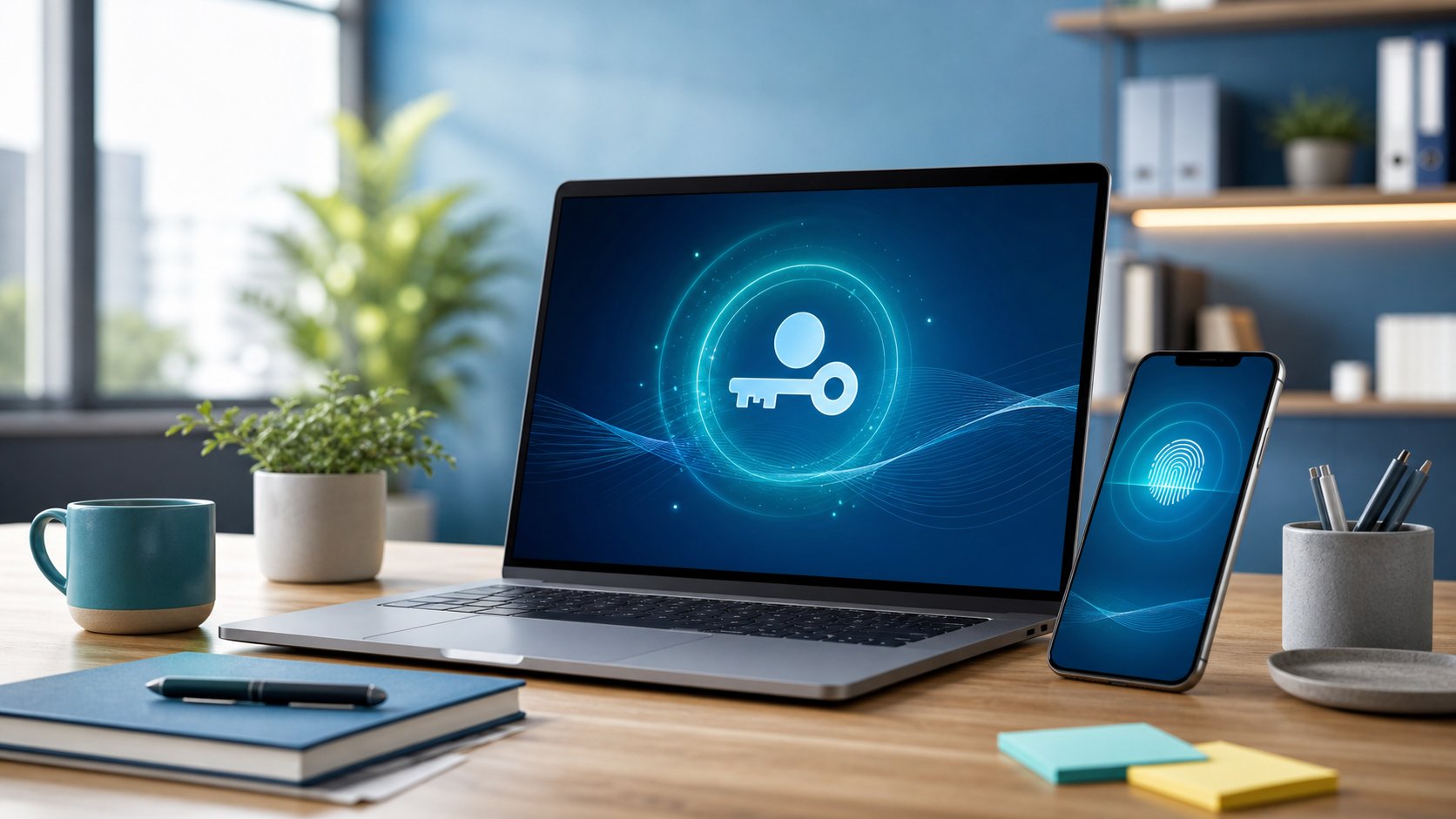
Where Passkeys Are Offered, Use Them
If you are tired of password resets, one-time codes, and worrying whether a login page is real, passkeys are worth adopting.
Passkeys let you sign in with the same thing you already use to unlock your device, such as your fingerprint, face unlock, or device PIN. The major benefit is practical: they are much harder for criminals to steal through phishing than traditional passwords.
That matters for everyday office staff, business owners, and families in Trinidad and Tobago. Many account compromises still start with a fake sign-in page, a reused password, or a rushed login on the wrong device. Passkeys help reduce that risk without making sign-in harder.
Recent guidance from the UK National Cyber Security Centre says passkeys are resistant to phishing because they cannot be intercepted, reused, or stolen like passwords. Google says passkeys are more secure against phishing and should only be created on devices you personally own and use. Microsoft is continuing to push phishing-resistant sign-in and remove weaker authentication methods because reducing phishable credentials reduces the attack surface.
What a passkey is in plain English
A passkey is not something you have to memorise.
Your phone, computer, or trusted credential manager creates and stores it for you. When you sign in, your device confirms it is really you by asking for the same unlock method you already use on that device.
For business users, that means:
- fewer passwords to remember
- fewer chances to type a password into a fake page
- an easier sign-in experience on trusted devices
Do this
- Use passkeys on important accounts wherever they are offered, especially email, Microsoft, Google, banking, and other high-value services.
- Create passkeys only on devices you personally own or that your company manages and trusts.
- Keep your phone, computer, browser, and credential manager up to date.
- Keep another secure sign-in or recovery method available in case you change or lose a device.
- If your work account does not support passkey-first sign-in yet, keep using a strong unique password and MFA.
Do not do this
- Do not create a passkey on a shared family device, public computer, front-desk kiosk, or someone else's phone.
- Do not assume passkeys fix every account risk if old passwords, weak recovery options, or SMS-only fallbacks are still left in place.
- Do not turn off good security habits just because sign-in feels easier.
- Do not ignore a lost or replaced device. Remove old passkeys from the affected account as soon as you can.
What to do if you are unsure
If you see a passkey prompt on a work account and you are not sure whether your company wants staff to use it, pause and ask IT first.
If you are setting up a passkey for a personal or small-business account:
- start from the account's official security settings, not from a link in an email or message
- use a device you trust and lock properly
- check that you still have a recovery method you control
If you lose a device that holds a passkey, sign in from another trusted device, remove the lost device's passkey, and review recent account activity.
A simple office rule
Where passkeys are offered on trusted devices, use them. Where they are not available yet, keep using strong unique passwords and MFA.
That is one of the easiest ways to reduce phishing risk without adding extra friction for your team.