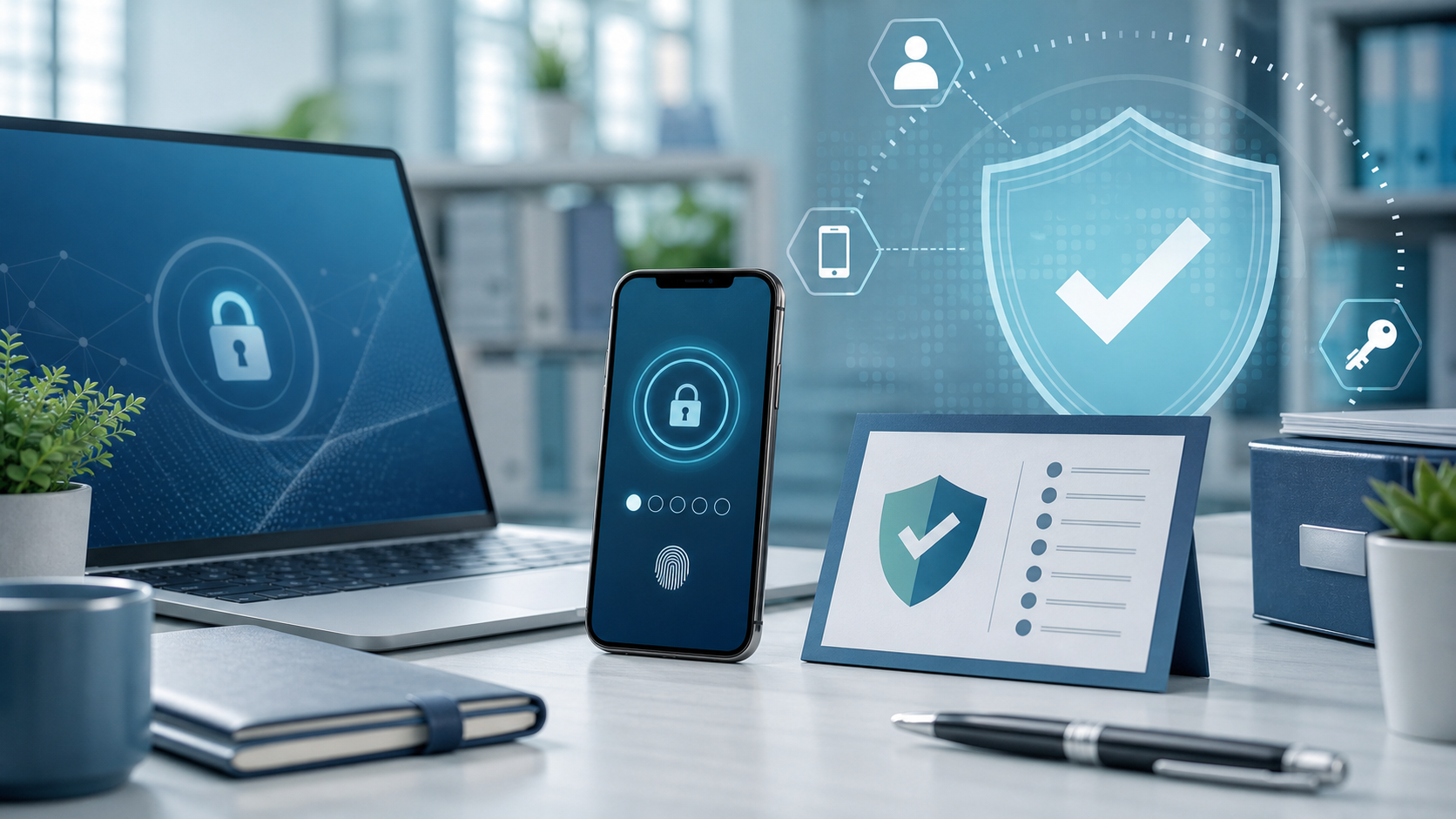
Multi-factor authentication is one of the best everyday protections for work email, cloud apps, and business accounts.
But many people only think about MFA when everything is working normally. The real test comes later: a phone is lost, replaced, reset, damaged, or simply unavailable when someone needs to sign in.
That is why one simple cyber-safety habit matters: before there is a problem, check how you would get back into the account.
Why this matters
A lost phone should be inconvenient, not a business outage.
If staff rely only on one authenticator app on one device, a routine phone problem can quickly become a login problem. That can delay access to email, files, payroll systems, finance tools, customer platforms, or admin accounts. In a small business, even one locked-out user can slow down the day.
The good news is that many services already provide safer recovery options. The important thing is to set them up and store them properly before they are needed.
What to check now
For important work accounts, pause and confirm:
- Is MFA enabled on the account?
- Are backup codes available?
- Does the user have a safe recovery method if the phone is lost or replaced?
- Would the recovery steps still work outside the office or after business hours?
- Does the business know which accounts would be hardest to recover if a device disappeared?
If the answer is unclear, now is the right time to fix it.
A practical office-safe rule
Do not wait until someone loses a phone to find out whether recovery was set up.
For business-critical accounts, recovery should be part of the setup checklist, not an afterthought.
Examples from major platforms
Google says backup codes can be created for accounts using 2-Step Verification and notes that each code works once. It also says users can create a new set at any time, which automatically inactivates the old set.
Microsoft explains that Authenticator backup can help restore saved accounts after a device change, but it also notes important limits. For work or school accounts, only the account name is backed up, which means users may still need to sign in again during restore. Microsoft also provides a separate recovery code option for Microsoft accounts and recommends printing the code and keeping it in a safe place rather than storing it on the device used for sign-in.
What staff should do
- Review MFA settings for work email and other important business accounts.
- Create backup codes or recovery methods where the service provides them.
- Store recovery details in a secure business-approved location, not in open notes, chat messages, or screenshots left on the same phone.
- Tell IT or management if an account depends entirely on one device.
- When replacing a phone, confirm account recovery still works before wiping the old one.
What not to do
- Do not save recovery codes in an unprotected document on the same device you use for MFA.
- Do not share backup codes casually in email or WhatsApp chats.
- Do not assume a new phone setup automatically restores every work account exactly as before.
- Do not wait until travel, a weekend, or an urgent deadline to test whether recovery is possible.
If a phone is already lost
Act quickly. Report it through your normal IT or management channel, change passwords where needed, and use the account's official recovery path rather than ad hoc workarounds. If the lost phone had access to work email or authentication apps, treat it as a security issue as well as an access issue.
Blue Chip's practical takeaway
MFA is still the right move. The extra habit is to make sure it can be recovered safely.
For Trinidad and Tobago businesses, this is a small piece of account hygiene that can prevent a very avoidable disruption. A few minutes spent checking backup codes and recovery steps today can save much more time later.
Sources: Google Account Help - Sign in with backup codes; Microsoft Support - Back up your accounts in Microsoft Authenticator; Microsoft Support - How to get a Microsoft account recovery code.