Before You Open That Attachment, Check the Context
A file attached to an email can feel harmless because it looks like normal office work.
A supplier sends a PDF. A customer sends a form. A manager forwards a spreadsheet. A courier message includes a delivery note. In a busy business, people open attachments all day.
That routine is exactly why attackers use attachments. They know staff are trying to get work done quickly.
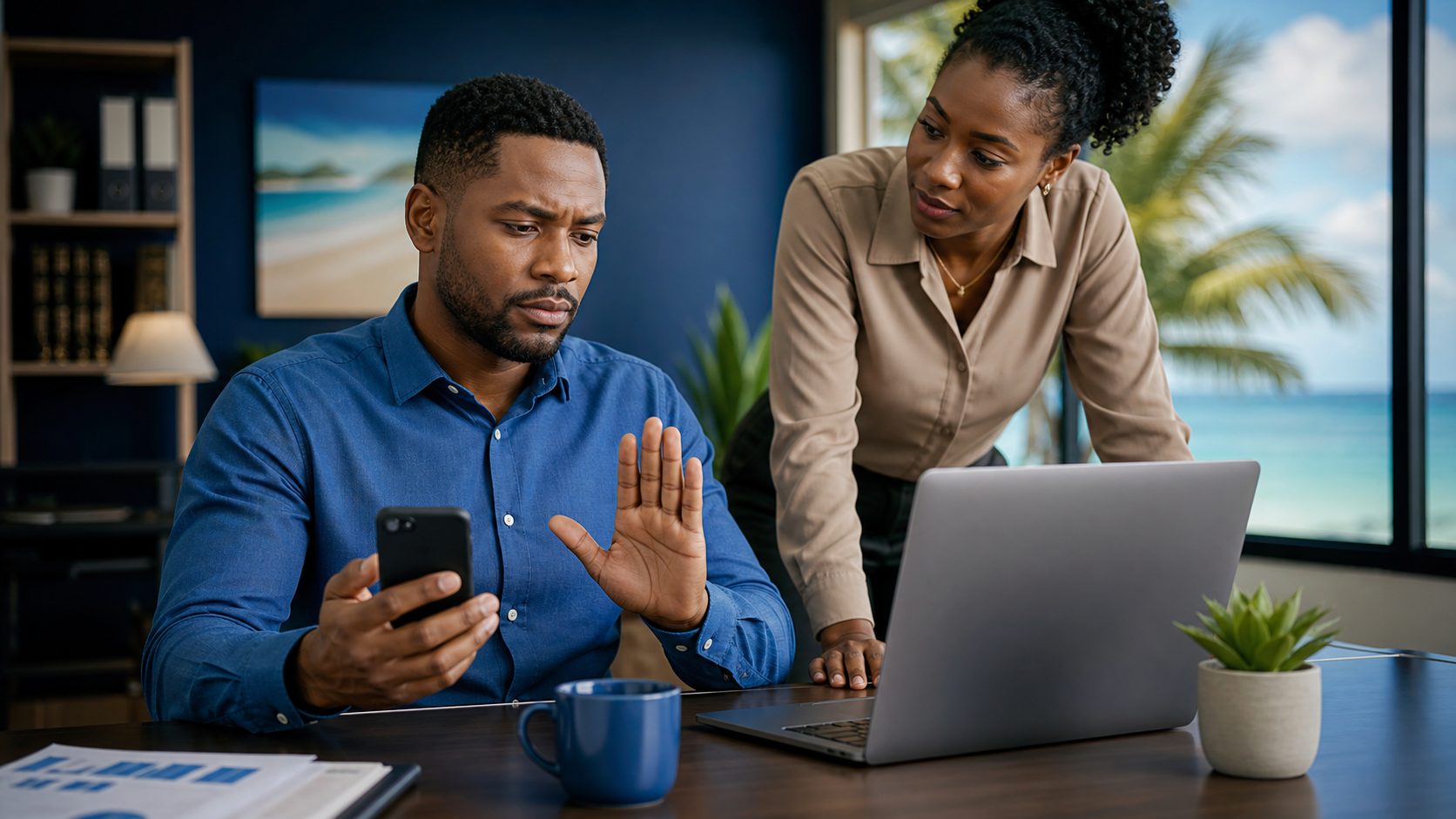
The goal is not to make everyone afraid of email. The goal is to build one simple habit: pause before opening an unexpected attachment, even if the message appears to come from someone you know.
Why attachments deserve a second look
Email attachments can be used to deliver malware, steal login details, or trick someone into enabling unsafe content. Some attacks also spoof the sender, which means the message may look like it came from a real colleague, customer, supplier, bank, courier, or software provider.
A suspicious attachment may arrive with a message like:
- "Please review urgently."
- "Your invoice is attached."
- "Payment failed. See document."
- "Updated bank details attached."
- "Open the file to view the secure message."
- "Enable editing" or "enable content" to see the document.
Those phrases are not proof of a scam, but they are good reasons to slow down.
For Trinidad and Tobago SMBs, this matters because one unsafe click can affect more than one workstation. It can lead to password theft, mailbox compromise, ransomware, invoice fraud, or unauthorized access to shared company files.
What to do before opening
Use context as your first check.
Ask yourself:
- Was I expecting this file?
- Do I know why this person is sending it?
- Does the sender's full email address match who they claim to be?
- Is the message unusually urgent, vague, or out of character?
- Is the file type what I expected?
- Is the email asking me to enter a password, approve a login, or enable document content?
If the file is unexpected, verify it through a trusted channel before opening it. Call the person using a number already in your records, message them through your normal company system, or create an IT/helpdesk ticket for review.
Do not use the phone number or link supplied inside the suspicious email as your verification method.
Safer attachment habits
Good office habits include:
- Open attachments only when the message and business context make sense.
- Be careful with compressed files, unusual file types, or documents asking you to enable macros/content.
- Use company-approved file sharing instead of personal email where possible.
- Keep Microsoft 365, Google Workspace, browsers, PDF readers, and endpoint protection updated.
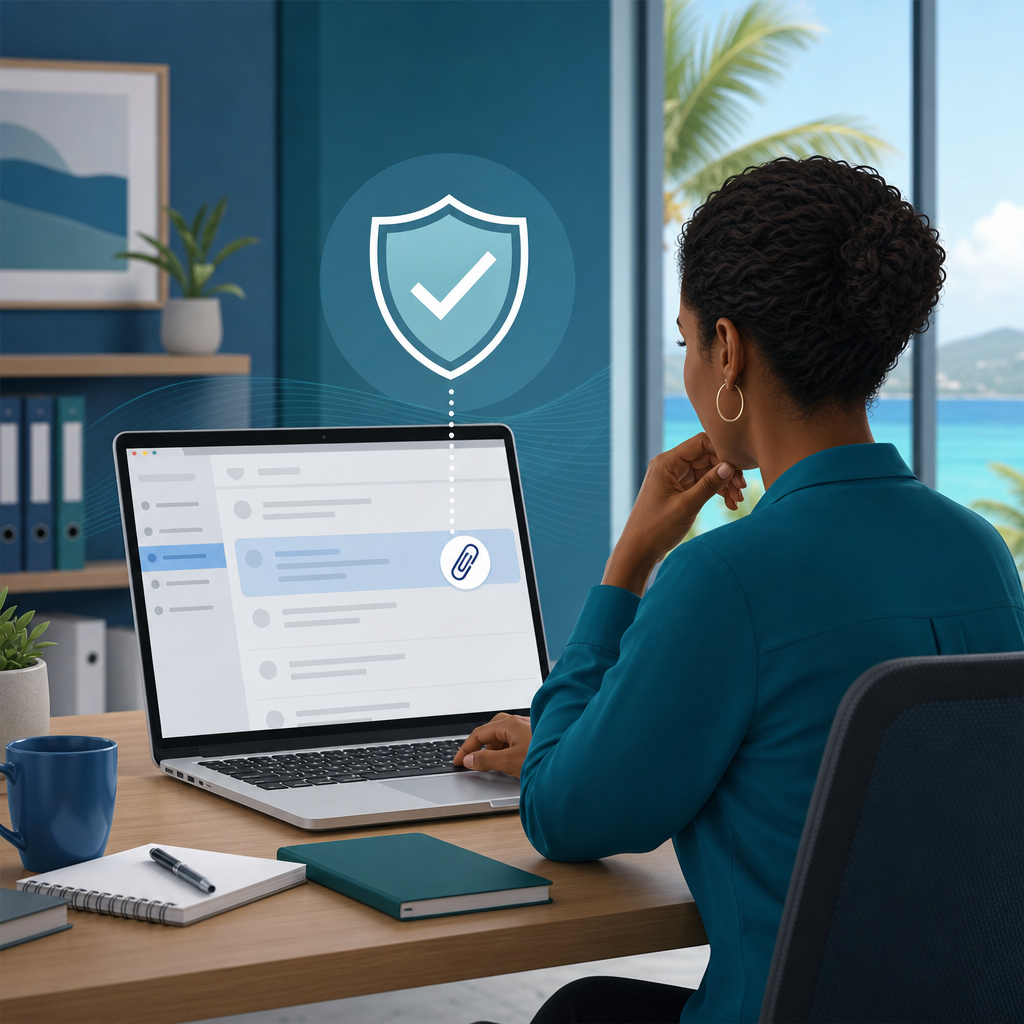
- Let email security tools scan attachments before opening them.
- Report suspicious messages instead of forwarding them around the company.
- If you are unsure, ask IT before opening the file.
If your business uses shared mailboxes such as accounts, sales, purchasing, or reception, make this habit especially clear. Those teams receive files from outside the company every day.
What not to do
Avoid these risky shortcuts:
- Do not open an attachment just because the sender name looks familiar.
- Do not enable macros, editing, or content because a document tells you to.
- Do not enter your Microsoft 365, Google, banking, or company password after opening a file or following a link from it.
- Do not assume antivirus will catch every bad file.
- Do not ignore a strange feeling because the work is urgent.
- Do not quietly delete the email if you already opened something suspicious; report it.
A real supplier, customer, or coworker will understand a quick verification step. A scammer wants you to feel rushed.
If you already opened it
If you opened a suspicious attachment, clicked a link in it, entered a password, approved a sign-in, or saw unusual pop-ups, report it immediately.
Tell IT or your manager what happened, including:
- who sent the message
- what file you opened
- whether you entered any login details
- whether you downloaded or enabled anything
- what time it happened
Do not keep using the computer for sensitive work until IT has checked it. If you entered a password, that account may need to be reset and reviewed.
Early reporting helps the business contain the issue quickly. It is better to report a false alarm than to stay quiet about a real compromise.
A simple rule for the office
Use this rule with staff:
If the attachment was unexpected, unusual, urgent, or asks you to enable something, verify before opening.
That small pause can prevent a much larger incident.
Sources: CISA — Using Caution with Email Attachments and Recognize and Report Phishing; Microsoft Support — Protect yourself from phishing.