
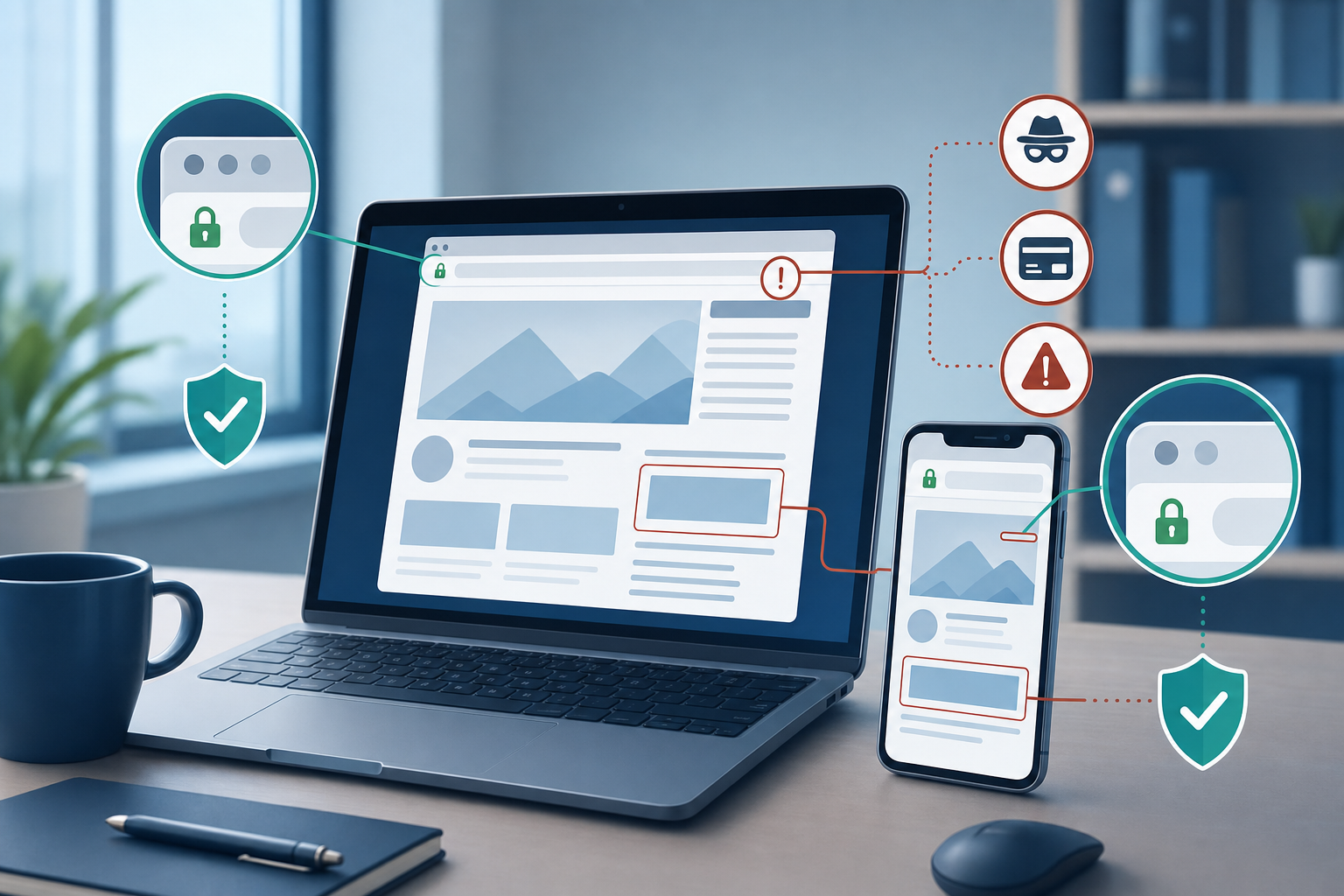
A Padlock Is Not Proof the Website Is Real
When staff check whether a site is safe, many look for the padlock or https and assume that settles it.
That is only part of the check.
A padlock tells you the connection between your device and the site is encrypted. It does not prove that the site itself is the right one. Criminals can still build convincing fake websites, add encryption, and try to collect passwords, card details, or other business information.
For busy office staff in Trinidad and Tobago, this matters because most daily work now happens in the browser: Microsoft 365, Google Workspace, banking, payroll, supplier portals, customer systems, and cloud storage.
What the padlock really means
According to Google's Chrome guidance, a secure symbol means the information you send or receive through the site is private. But Google also warns that even on secure sites, you should still check that you are on the correct site.
The FTC makes the same point from another angle: scammers can create fake websites and encrypt them so they look safe when they are not. Your data may travel securely to the site, but it is still going to the scammer.
So the safer rule is this:
Treat https and the padlock as one good sign, not the final decision.
Why fake sites still work
Fake sites usually succeed when someone is rushed.
A message says there is a payment issue, a shared document, a sign-in problem, a missed delivery, or an urgent approval waiting. The link opens a page that looks close enough to the real service. On a phone screen or during a busy workday, small differences are easy to miss.
CISA's phishing guidance recommends typing the real website address directly instead of clicking a link in an urgent email. CISA also advises checking website URLs for slight misspellings or the wrong domain ending.
That is often where the scam gives itself away.
Do this
Use these habits at work:
- Look for
httpsor the padlock, but keep checking beyond that. - Read the full website address before signing in.
- Watch for small misspellings, extra words, unusual hyphens, or the wrong domain ending.
- Use bookmarks or type the known address directly for important services like Microsoft 365, banking, payroll, remote access, and supplier portals.
- Pause if a message creates urgency and pushes you to sign in quickly.
- Turn on browser protections such as HTTPS-only or
Always use secure connectionswhere available. - Report suspicious login pages, browser warnings, or unexpected sign-in requests to IT.
Do not do this
Avoid these shortcuts:
- Do not trust a page only because it shows a padlock.
- Do not enter your work password into a page opened from an unexpected email, text, QR code, or chat message.
- Do not ignore a browser warning just to get the task done faster.
- Do not assume a familiar logo or clean design means the site is genuine.
- Do not approve a login or payment request before checking the address carefully.
A quick check that helps
Before entering a password or payment detail, ask yourself two questions:
- Did I get to this page in a way I trust?
- Does the website address exactly match the company or service I meant to visit?
If either answer is no, stop there.
What to do if you are unsure
If a site looks close but not quite right, do not test it with your password.
Instead:
- Close the page.
- Open a fresh browser tab.
- Type the known website address yourself or use a trusted bookmark.
- If the request involved money, account access, or customer data, verify it with IT or your manager before continuing.
- If you already signed in, report it immediately and change the password from the real site.
Fast reporting matters. A small hesitation before you log in can prevent a larger account problem later.
A simple office rule
Use this rule with staff:
A padlock means the connection is protected. It does not prove the site deserves your trust.
That extra check can stop fake login pages from turning a normal workday into a password reset and incident response exercise.
Sources: CISA - Recognize and Report Phishing; CISA - Tips to Stay Safe while Surfing the Web, Part 2: Accessing Websites Securely; Google Chrome Help - Check if a site's connection is secure; FTC Consumer Advice - Are Public Wi-Fi Networks Safe? What You Need To Know.