Do Not Hand Over Remote Access Until You Verify the Request
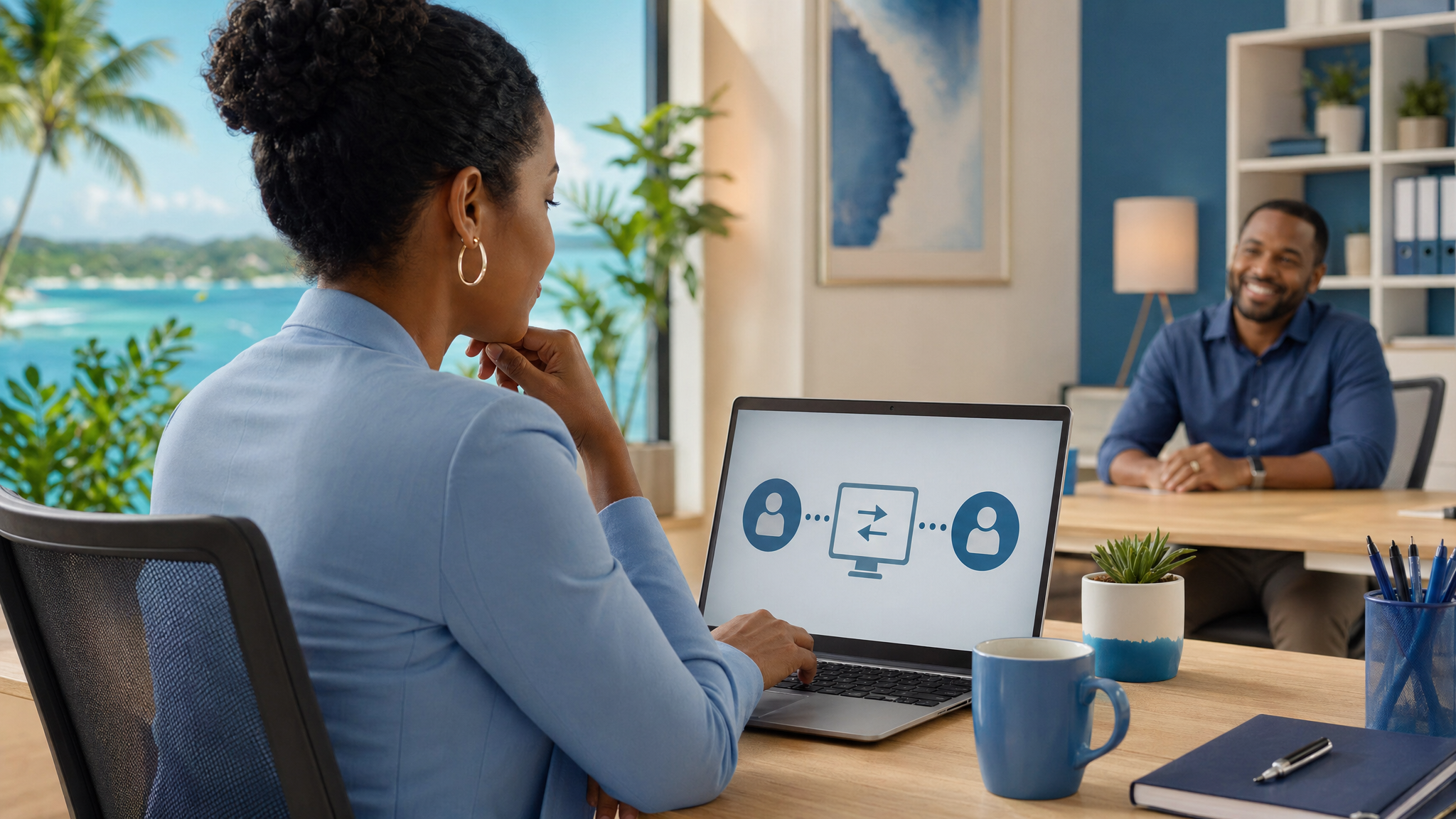
Remote access is useful when the right IT person is helping you.
It is also powerful enough to be dangerous in the wrong hands.
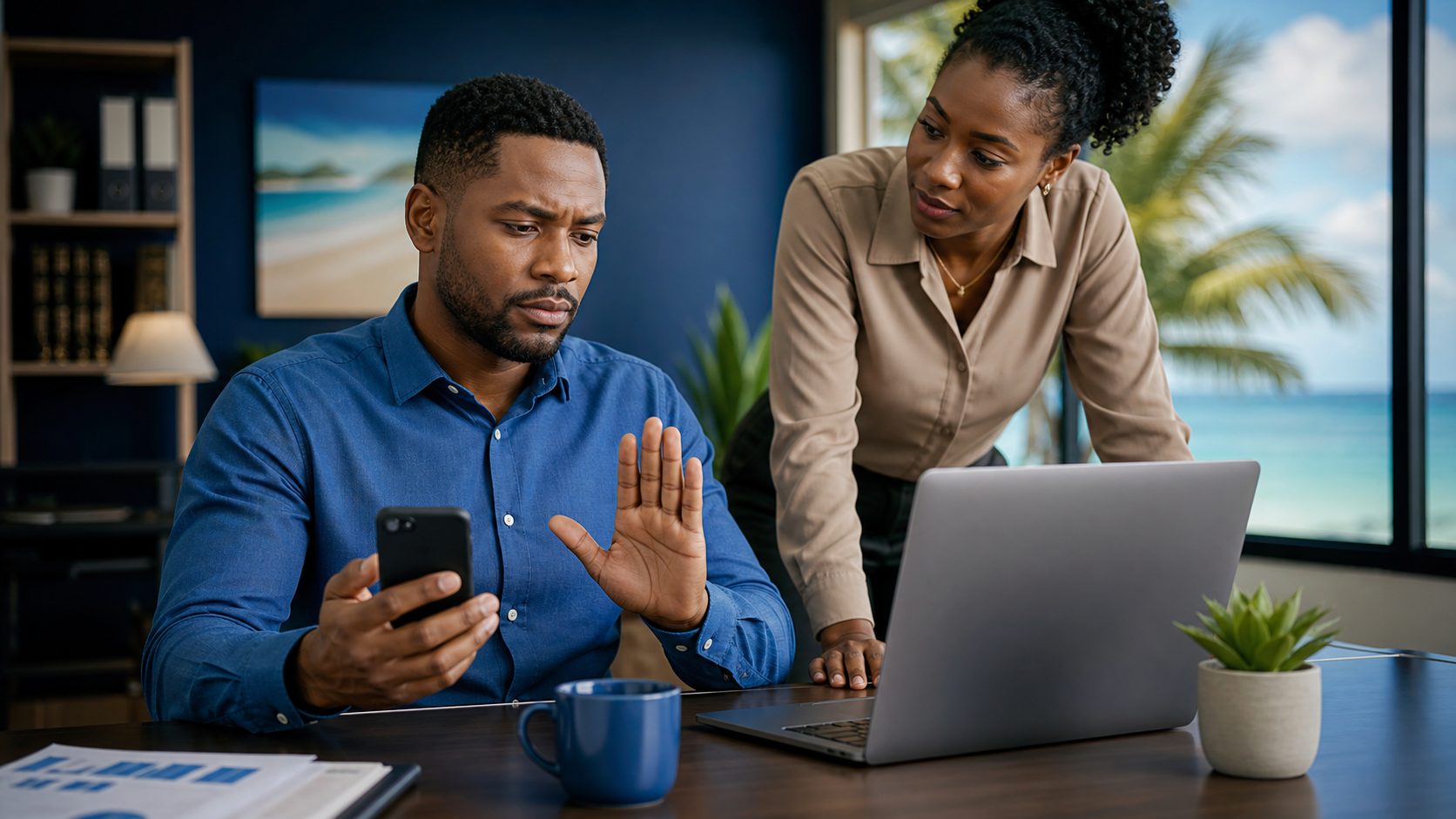
A common scam starts with a phone call, pop-up message, WhatsApp, email, or search result that claims something is wrong with your computer, Microsoft account, bank account, antivirus, printer, or email. The person sounds helpful and confident. They may ask you to install a remote-access app, read out a connection code, share your screen, or approve a prompt so they can “fix” the issue.
That is the moment to pause.
For everyday office staff and small businesses in Trinidad and Tobago, the safest rule is simple: do not give anyone remote access to a work device unless you verified the request through your normal IT support channel first.
Why this matters
Remote access lets another person see or control your computer. If the request is legitimate, that can help IT support solve a problem quickly.
If the request is fake, it can let a scammer:
- view emails, files, saved browser sessions, or customer information
- install unwanted software or malware
- change security settings
- capture passwords or one-time codes
- open banking, accounting, or cloud systems while you are logged in
- pressure you into paying for fake services
Scammers know many people want to be helpful and get the problem resolved quickly. They also know that “technical” language can make a request feel more official than it really is.
Stop signs to watch for
Be cautious if someone:
- calls unexpectedly and says your computer, email, or account has a problem
- says they are from Microsoft, Google, your bank, antivirus company, courier, or a government office
- tells you to install AnyDesk, TeamViewer, Quick Assist, Chrome Remote Desktop, or another remote-control tool without your usual IT process
- asks for a remote access code, screen-sharing approval, password, MFA code, or banking details
- says you must act immediately or your account will be closed
- tells you not to call your usual IT contact
- asks you to pay for support by gift card, wire transfer, crypto, or unusual payment method
- appears through a browser pop-up with a phone number to call
One sign may be enough reason to stop and verify.
What to do instead
Use a trusted path, not the contact details supplied by the person asking for access.
Good habits include:
- Call your normal IT support number or submit a ticket using the method your company already uses.
- If you work with an MSP, use the saved helpdesk contact you were given, not a number from a pop-up or email.
- Ask the caller for a ticket number, then verify it through your usual support channel.
- Close browser pop-ups instead of calling the number shown on screen.
- Do not install remote-access software unless your IT team specifically confirms it.
- Do not approve a remote session just because the person knows your name, company, email address, or device type.
- If a real technician needs access, let them start from the agreed support process.
Legitimate support should not be offended by verification. A good IT process expects it.
What not to do
Avoid these risky shortcuts:
- Do not let an unexpected caller control your computer.
- Do not read out a remote-access code unless you initiated and verified the support request.
- Do not enter passwords or MFA codes while someone unknown is watching your screen.
- Do not log in to banking, payroll, accounting, or email during a suspicious remote session.
- Do not pay for “cleanup” or “security services” offered through a pop-up warning.
- Do not rely on caller ID, email display names, or logos as proof that the request is real.
Scammers can fake the parts that look official.
If you already allowed access
Do not panic, but act quickly.
Disconnect from the session. If you are unsure how, unplug the network cable, turn off Wi-Fi, or shut down the computer. Then contact your manager or IT support through a known trusted method.
Tell them what happened, including:
- how the contact started
- what software was installed or opened
- whether you typed any passwords or MFA codes
- whether banking, accounting, email, cloud storage, or customer systems were visible
- whether any payment was made
If you shared a password, it should be changed on every account where it was reused. If money or banking details were involved, contact the bank immediately. IT may also need to scan the computer, remove remote-access software, review account sign-ins, and check whether other systems were affected.
Early reporting helps protect the business. It is much better to report quickly than to hope nothing happened.
A simple office rule
Use this as a staff rule:
Remote access is only allowed after the support request is verified through the company’s normal IT channel.
That one habit can stop many tech-support scams before they turn into stolen passwords, exposed files, or fraudulent payments.
Sources: Federal Trade Commission — Cybersecurity for Small Business: Tech Support Scams; Microsoft Support — Protect yourself from online scams and attacks; National Cyber Security Centre — Phishing scams: what to do if you’ve shared sensitive information.