Before You Sign In, Check the Web Address
A fake login page can look almost identical to the real one. It may use familiar colours, a copied layout, and a message that sounds urgent: your mailbox is full, a file is waiting, your password is expiring, or your account needs to be verified.
The small habit that helps most is simple: before typing your password, check where the page really is.
This matters for everyday office work in Trinidad and Tobago because many business tasks now start with a link: Microsoft 365, Google Workspace, online banking, courier portals, supplier invoices, HR forms, shared documents, and cloud apps. Attackers know that. They try to make the page feel routine so staff type first and think later.
The safety tip
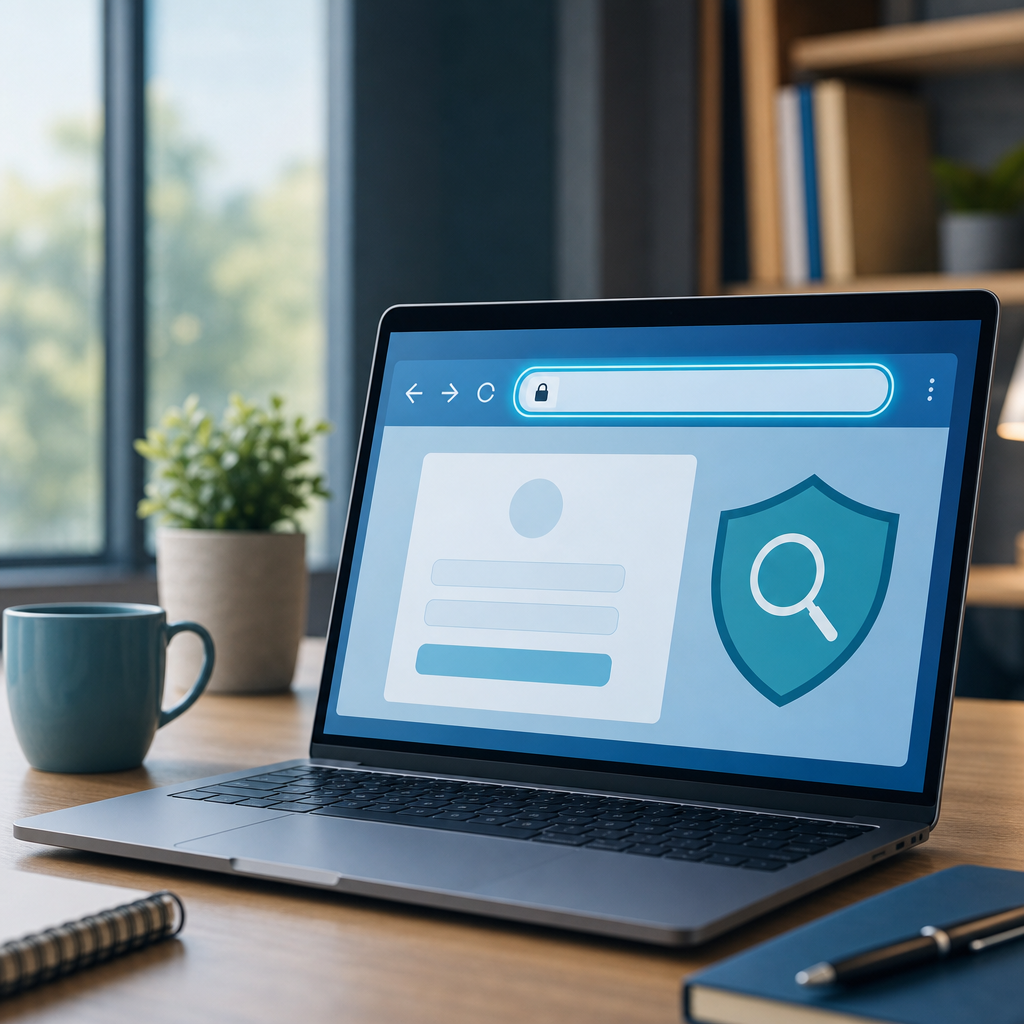
Before you enter a username, password, MFA code, card number, or banking detail, pause and look at the web address in the browser.
Do not rely only on the logo, page design, or wording. Those are easy to copy. The address is harder to fake perfectly, and it often gives you the first warning that something is wrong.
A safe login should take you to the real domain you expect, not a lookalike. For example, the official company name should be in the right place in the address, not hidden inside a long string of extra words, dashes, numbers, or unfamiliar endings.
What to check before you sign in
Use this quick checklist when a link asks you to log in:
- Check the domain carefully. Look for misspellings, extra words, unusual dashes, or endings that do not match the service you normally use.
- Be careful with long addresses. Attackers may hide the suspicious part inside a very long link.
- Do not trust a page just because it has a padlock. HTTPS is important, but phishing sites can also use HTTPS.
- Be suspicious of urgency. “Password expires today,” “final warning,” “invoice overdue,” or “document access will be removed” are common pressure tactics.
- Avoid signing in from unexpected links. If you were not expecting the message, open a new browser tab and go to the service from your saved bookmark or by typing the address yourself.
- Check links before clicking where possible. On a computer, hover over the link first and compare the preview address with what you expected.
- Use your password manager as a clue. If it normally fills the password for that service but does not fill it on this page, stop and check the address.
What not to do
Do not enter your password because the page “looks right.”
Do not paste an MFA code into a page you reached from a suspicious email, chat message, QR code, or text message. Some phishing pages try to capture both the password and the verification code quickly.
Do not approve an MFA prompt just because it appeared after you clicked a link. If you did not personally start a sign-in to the real service, deny the prompt and report it.
Do not call phone numbers listed inside the suspicious message. Use a number from the company’s official website, your supplier record, a previous trusted invoice, or your internal contact list.
A realistic office example
An employee receives an email saying a shared file is ready for review. The message looks like normal office work and includes a button to open the file. After clicking, the page asks for a Microsoft or Google password.
The safer move is not to decide based on the page design. The safer move is to check the address, close the page if anything looks odd, and open the file service directly from a known bookmark or official app. If the file is real, it should still be available after signing in through the normal route.
What to do if you are unsure
If something feels off, stop before entering details.
Use another channel to verify the request. Call the sender, send a new message using a saved contact, or ask your supervisor or IT support to check it. Forwarding a suspicious message for review is much easier than recovering a compromised mailbox or bank account.
If you already entered your password on a suspicious page, act quickly:
- Change the affected password from the real website or official app.
- Change it anywhere else the same password was reused.
- Make sure MFA is enabled.
- Tell your IT support team what happened, including where the message came from and what information was entered.
- If banking, card, payroll, or supplier-payment details were involved, contact the relevant financial institution or internal finance lead immediately.
Blue Chip’s practical advice
The goal is not to make staff afraid of every link. The goal is to build one calm habit: before signing in, check where you are.
For businesses, this habit works best when paired with MFA, password managers, safe-link filtering, email security, browser protection, staff awareness training, and a clear way to report suspicious messages without blame. People will see suspicious links from time to time. What matters is that they feel comfortable pausing, checking, and asking before giving away access.
Sources: CISA — Recognize and Report Phishing; Microsoft Support — Protect yourself from phishing.